Work / Desktop apps / Security

Cinder
A file shredder that says what it did, and what that achieves on your drive.
What it does
A file shredder that says what it did, and what that achieves on your drive.
Cinder is a file shredder that says what it did and what that achieves. It destroys files and folders so that recovery software cannot bring them back, wipes the free space where files you deleted earlier still linger, and erases a whole USB stick, memory card or external drive before you sell it or hand it on.
It installs for your user account only, with no Windows service. Only erasing a whole drive, TRIM and listing shadow copies ask Windows for an administrator, at the moment they are needed.
Honest about your drive
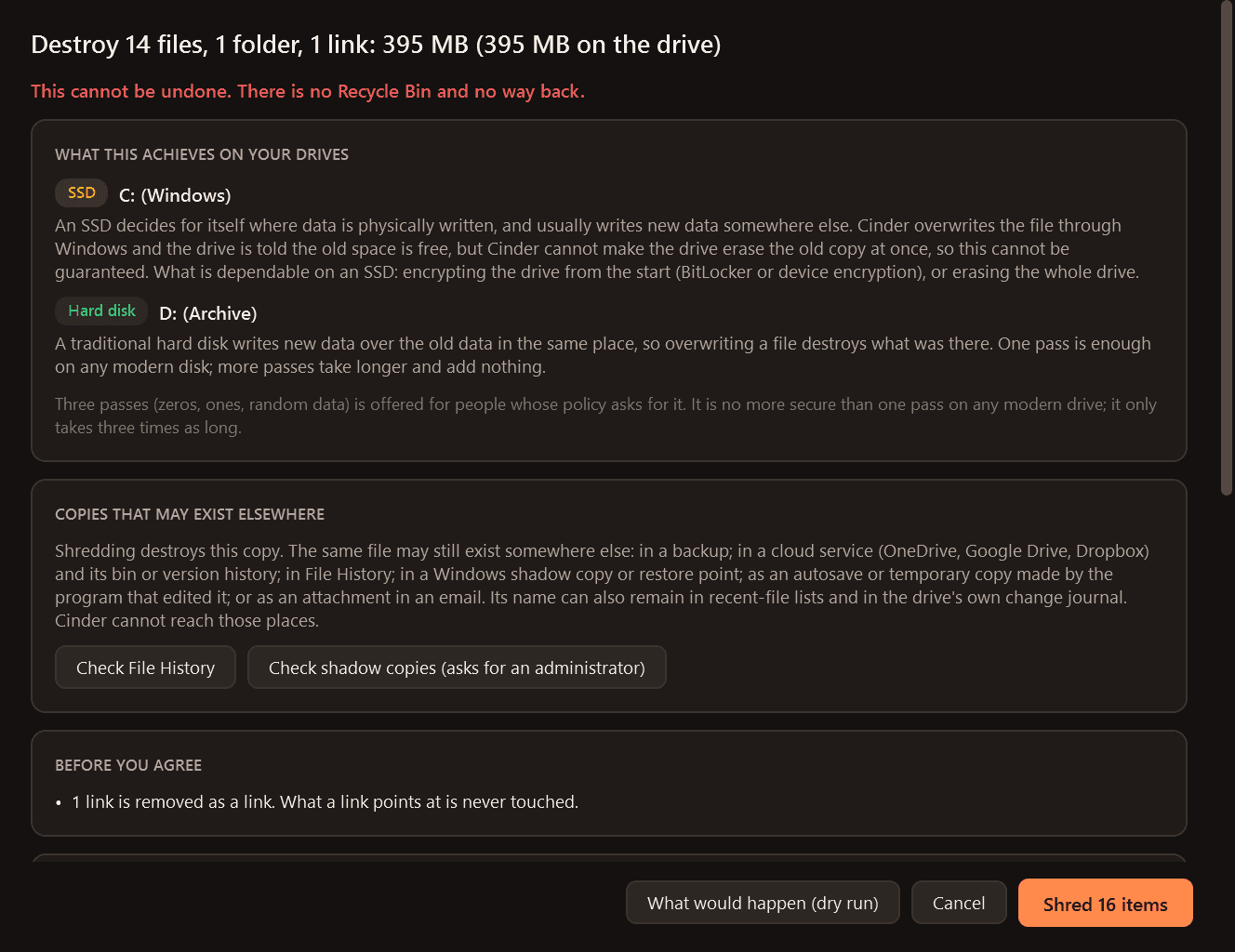
- Cinder tells you whether each drive is a hard disk, an SSD or flash storage, and what that means, in the window where you decide.
- On a traditional hard disk, overwriting a file in place destroys it. One pass of random data is enough on any modern disk; more passes add time, not safety.
- On SSDs, USB sticks and memory cards the drive decides where data is physically written, so overwriting a single file may not reach the old copy. What is dependable there is encryption from the start, or erasing the whole drive. Cinder says so instead of promising.
- A shredded file may still exist elsewhere: backups, cloud sync, File History, shadow copies, another program's autosave. Cinder can check File History and list shadow copies for you, and says what to do about them.
Guard rails that cannot be clicked past
- Windows, Program Files, ProgramData, the root of any drive, a whole user profile and Windows' own system files are refused in the lowest level of the program, not just in the window.
- Junctions and links are removed as links. Cinder never follows one, and never goes into another drive mounted in a folder.
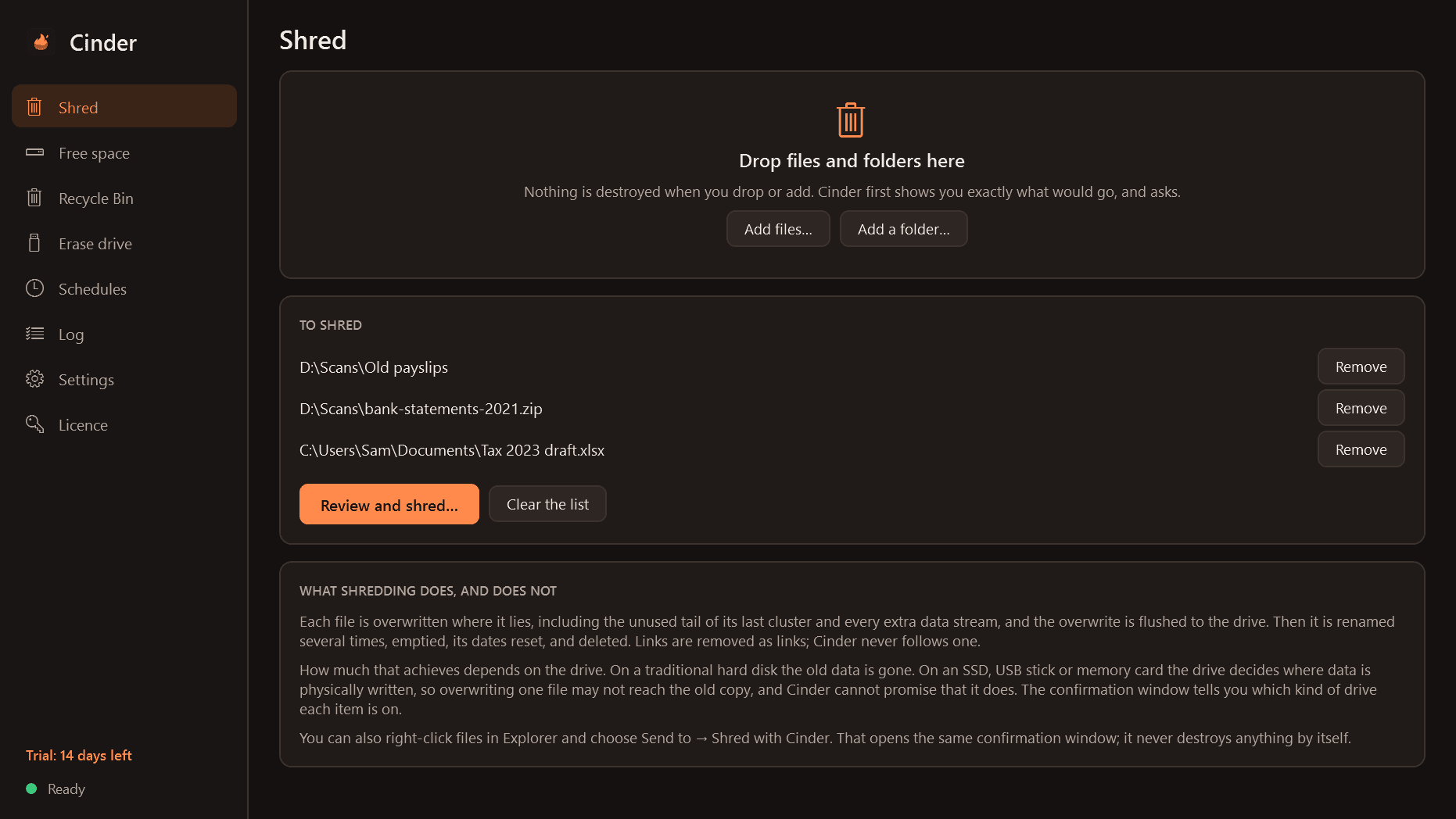
- Every shred first shows exactly what will be destroyed: the count, the total size and the full list. Above 100 items or 1 GB you type a word to confirm. There is a "what would happen" dry run on everything.
Shredding files and folders
- Drag and drop, a button, or Send to → Shred with Cinder in Explorer (which only opens the confirmation window).
- Each file is overwritten over its full allocated space, including the tail of its last cluster and every alternate data stream, flushed to the drive, renamed several times, emptied, its dates reset, then deleted.
- The awkward cases are handled and reported: compressed, sparse and NTFS-encrypted files (which Windows writes to new space), very small files stored inside the file table, hard links, read-only files, long paths, FAT and exFAT drives, online-only cloud files, network drives.
- Files in use are left alone and the program holding them is named. Cinder never closes another program.
- One pass of random data, one pass of zeros, or three passes for policies that demand it, labelled as no more secure on modern drives. Optional read-back check.
- Speed, time remaining, pause and cancel. Cancel stops between files and lists exactly what was and was not destroyed.
Wiping what was already deleted
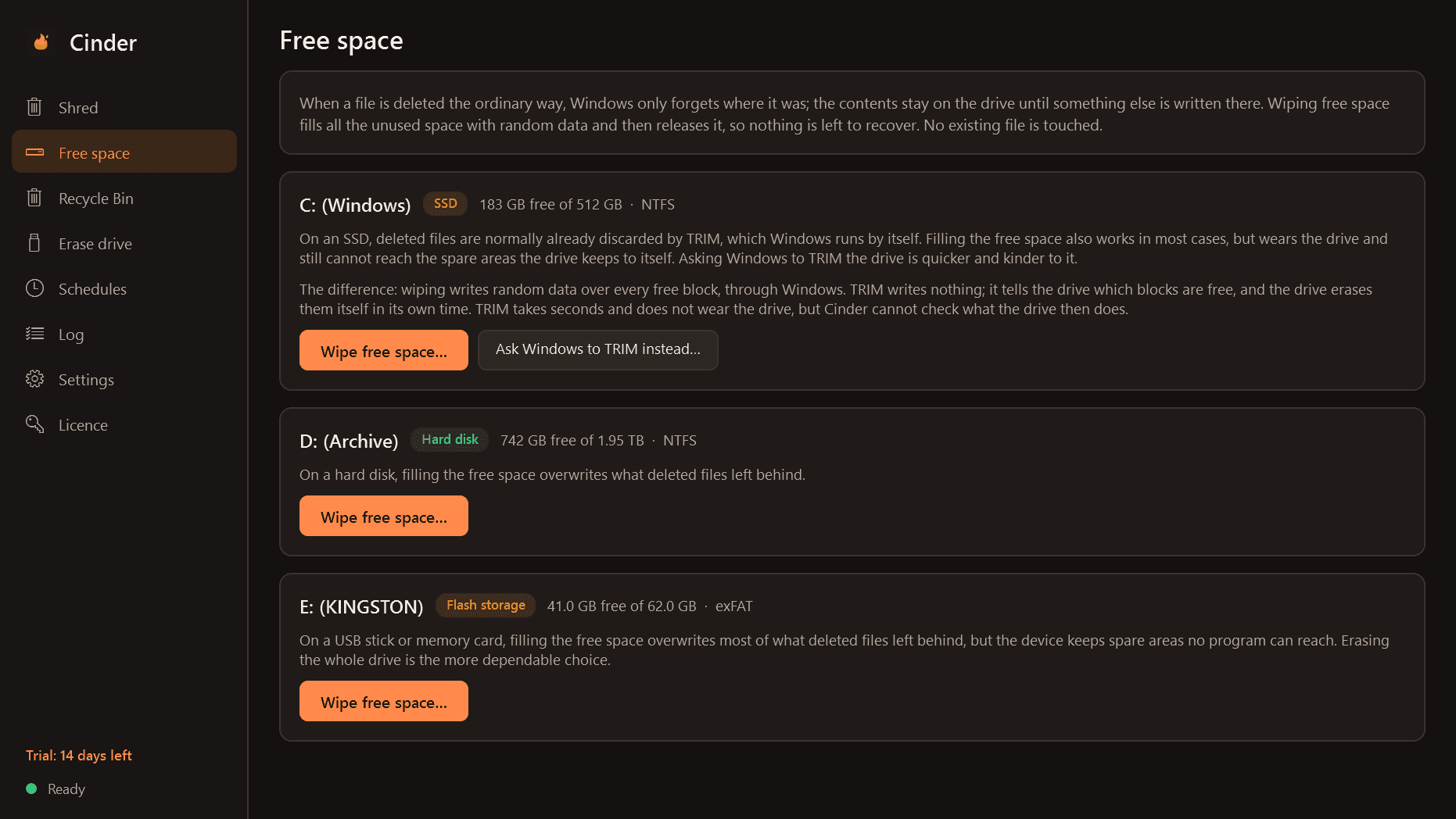
- Wipe free space: fills the unused space with random data and releases it, without touching any existing file. A safety margin stays free so Windows does not run out of space, and Cinder goes back over that margin too.
- If it is cancelled, crashes or loses power, the temporary files are removed: at once, or the next time Cinder starts.
- On an SSD, ask Windows to TRIM the drive instead; the page explains the difference.
- Shred the contents of the Recycle Bin, per drive or all drives.
- Optional schedules from the notification area, only when the PC is idle and on mains power.
Erasing a whole removable drive
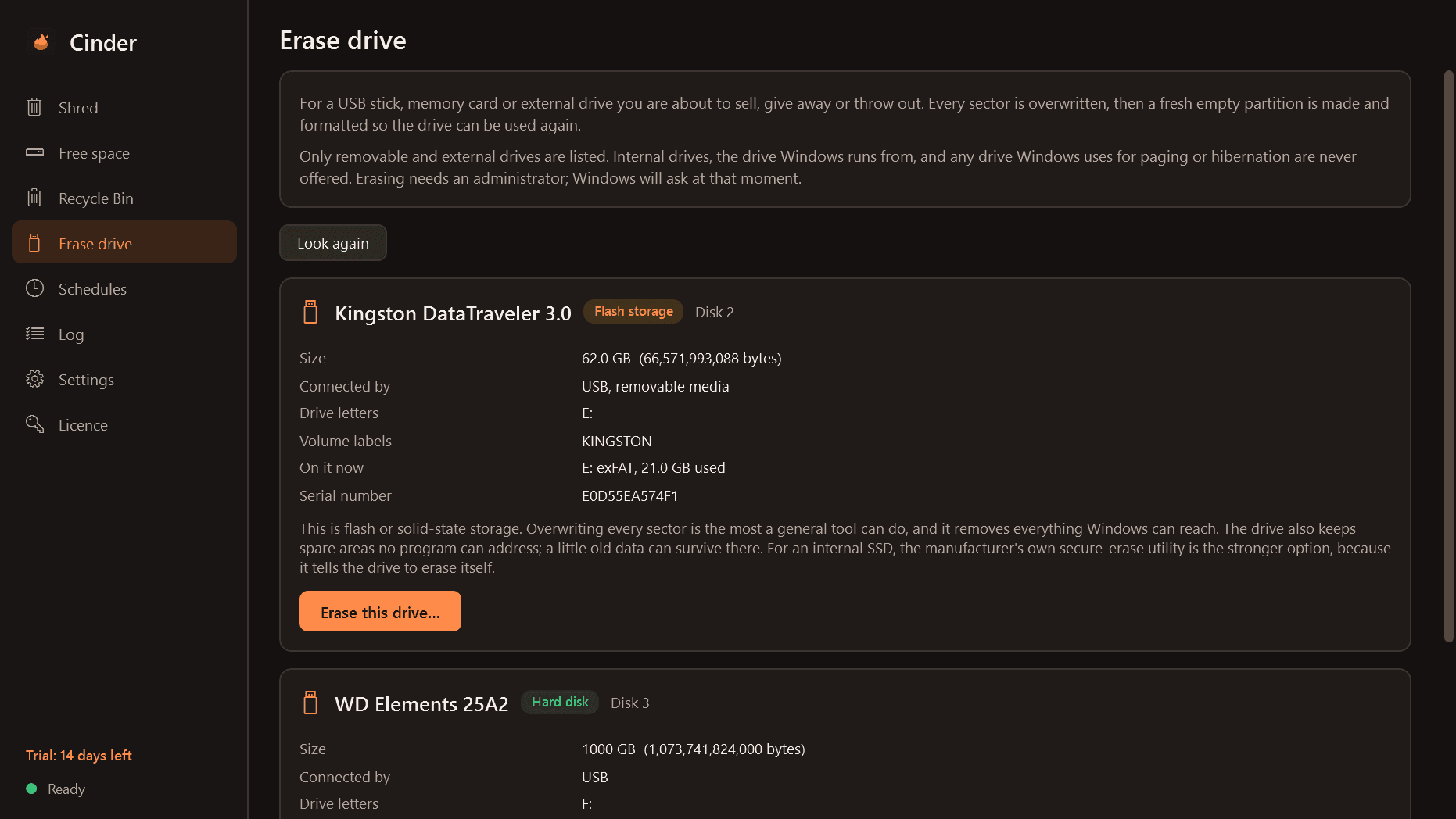
- For USB sticks, memory cards and external drives only. Internal drives and the drive Windows runs from are never offered.
- Each drive is shown with its name, size, drive letters, labels and connection. You type its label or size, then there is a ten-second countdown you can cancel.
- Every sector is overwritten, then a fresh empty partition is created and formatted so the drive is usable again. Optional read-back of a sample or of everything.
- A printable erasure report: device model, serial number, size, method, date and the read-back result.
Records
- An erasure log: date, operation, how many items, how much data, method, drive type, result. File names are not recorded unless you switch that on.
Good to know
- Free to try for 14 days with every feature. After that Cinder needs a licence to carry on: it opens only a screen that asks for one, where you can still export your erasure log. Your settings, schedules and log are kept.
- An expired copy still removes the temporary files of an interrupted free-space wipe. It never leaves a drive full.
- The only times Cinder uses the internet are to check its licence and to look for updates.
One-time purchase for one PC. Includes every version released in the following 12 months; the version you have keeps working after that.
Screens
A closer look.
Need somethinglike this built?
A few lines is enough. You will hear back from a person within one business day.