Work / Desktop apps / Productivity
Glean
Grab the text from anything on your screen.
What it does
Grab the text from anything on your screen.
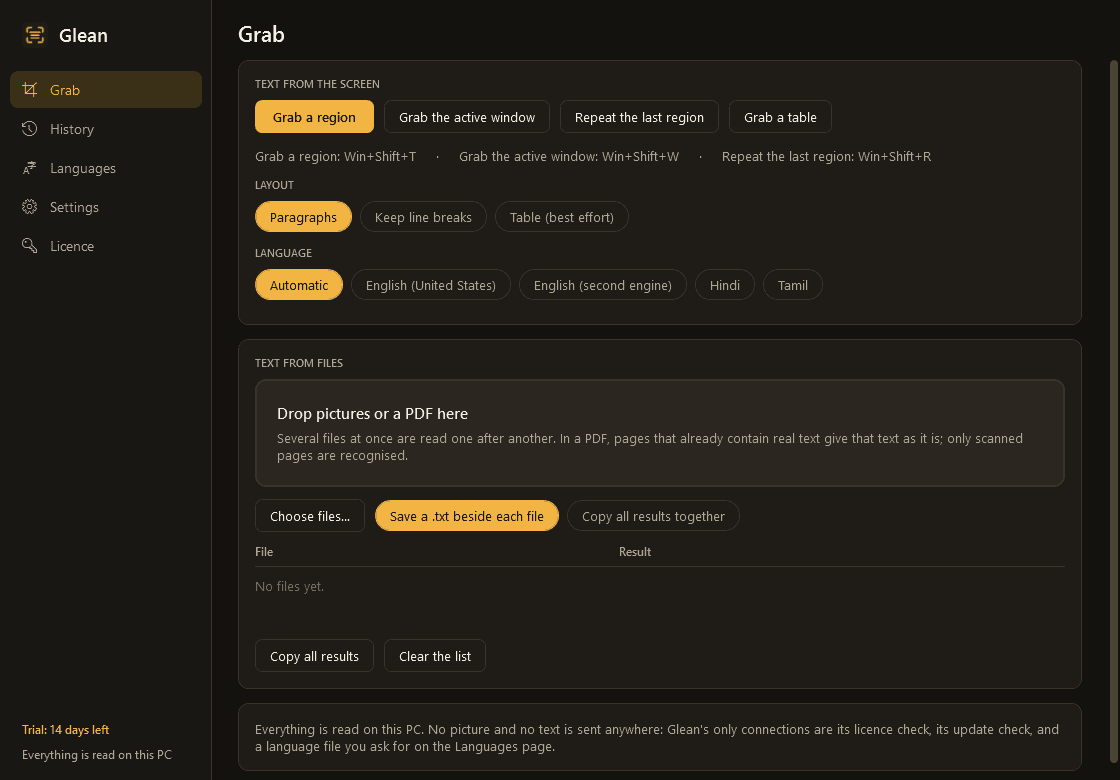
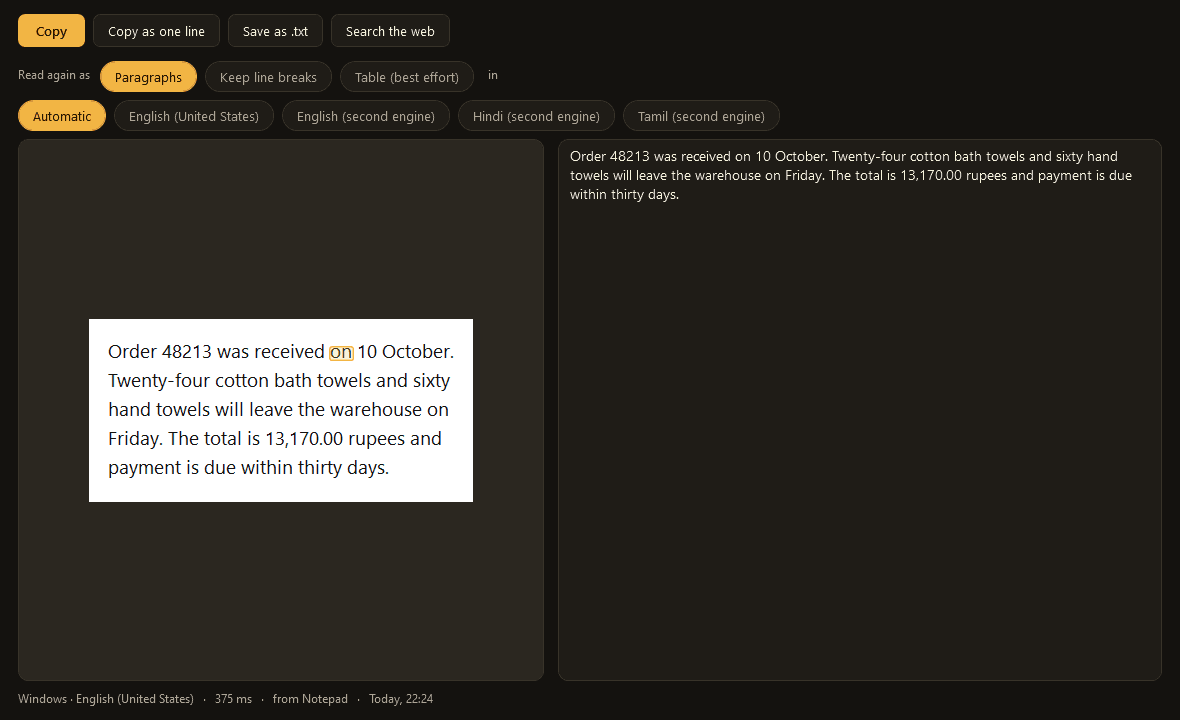
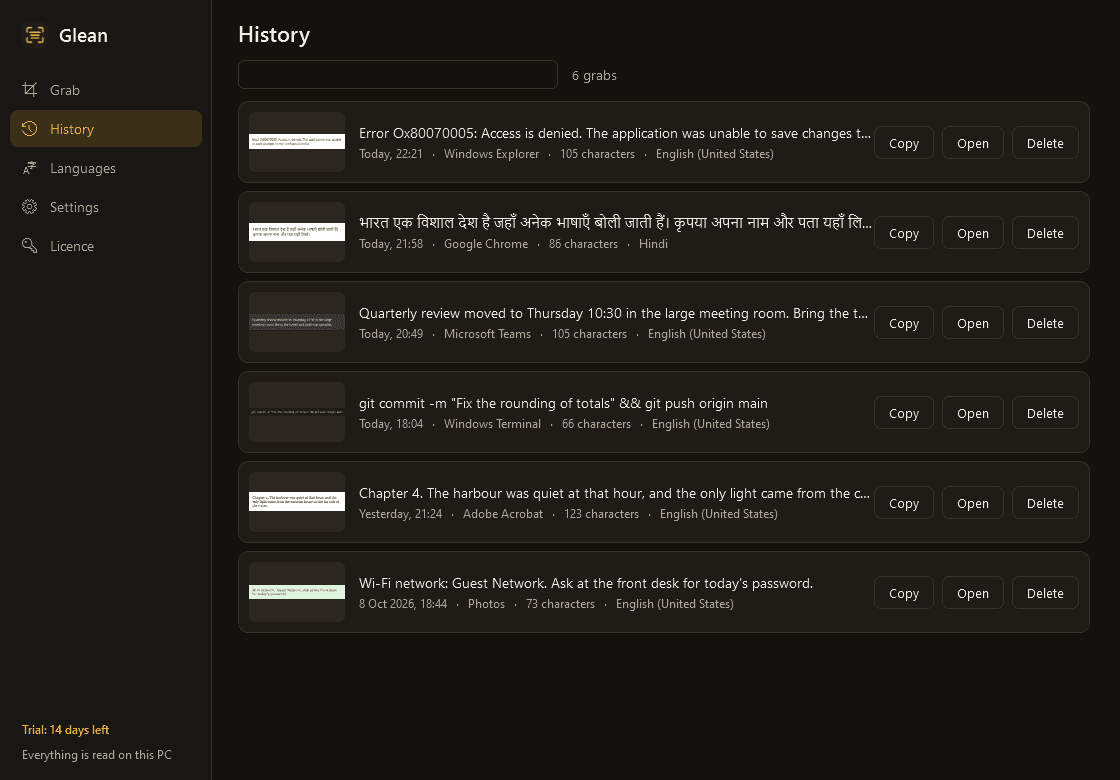
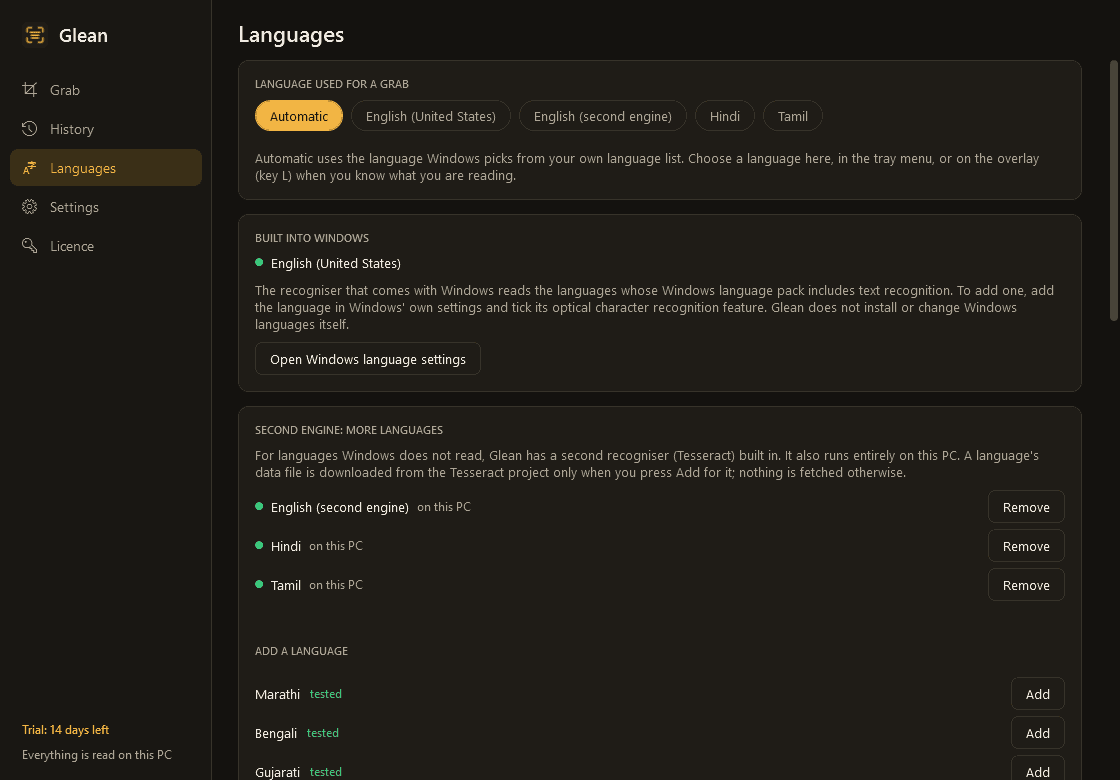
Glean takes the words out of anything on your screen. Press a shortcut, drag a box around a picture, a video frame, a PDF that will not let you select or an error dialog, and the text in it is on your clipboard a moment later. ## What it does - A shortcut freezes the screen and shows a selection overlay with a magnifier. Drag a rectangle and let go: the text is copied, and a small notice shows its first line with Edit and Copy again. - Three more ways to grab, each with its own shortcut: the whole active window, the last region again (for subtitles, or a value that keeps changing), and a region as a table. - Lines are joined into flowing paragraphs, with words broken by a hyphen put back together. Or keep every line break as seen, which is the one for code. - Table mode copies rows and columns so they paste into Excel as cells. It is best effort: cells that wrap or are merged are beyond it. - Reads QR codes and barcodes in the selection and offers what they hold: a link, text, Wi-Fi details. - Before reading, small text is enlarged, light-on-dark text is inverted and slightly leaning text is straightened. - A result window with the picture beside the text, which you can edit. Words worth a second look are lightly marked, and clicking a word shows where in the picture it came from. From there: copy, copy as one line, save as .txt, search the web, open a link, dial a number, write to an address, or read again in another language or layout. - Text from picture files and PDFs too: drop them on the window or use Send to in Explorer. Pages of a PDF that already hold real text are used as they are; only scanned pages are recognised. - A history of your grabs with a small picture, the date and the app each came from, searchable by the text. ## Languages - English and the other languages Windows reads work at once, using the recogniser built into Windows. - For languages Windows does not read, a second recogniser is built in, and a language's data is downloaded only when you ask for it. Measured on clean test pictures: Hindi, Marathi, Bengali, Gujarati, Punjabi, Tamil, Telugu, Kannada, Malayalam, Odia and Urdu, all between 96% and 100% of characters right. Photographs, handwriting and decorative fonts will read worse. - The second recogniser also reads English, and reads small text, code and amounts written the Indian way (1,24,500.75) better than the Windows one. ## Good to know - Everything is read on your PC. No picture and no text is ever sent anywhere. Glean's only connections are its licence check, its update check, and a language download you ask for. "Search the web" opens your browser; Glean itself sends nothing. - The history is stored only on your PC and is encrypted with a key Windows keeps for your account. You can keep it forever, for a number of days, or not at all, pause it from the tray, and list apps that are never saved (password managers are on the list from the start). "Delete everything" removes the lot. - Very small text (9 px) is read less reliably than normal text, and the Windows recogniser drops lines that hold a single character. Check what matters before you rely on it. - It installs for your user account only and never asks for administrator rights. It sits in the notification area and starts when you sign in; idle, it uses next to nothing. - Light and dark mode. - Free to try for 14 days with every feature. After that Glean needs a licence to keep working: without one it shows only a screen for entering a key and its shortcuts are switched off. Your history is kept, and from that screen you can still export it as text or delete it. One-time purchase for one PC. Includes every version released in the following 12 months; the version you have keeps working after that.
Screens
A closer look.
Need somethinglike this built?
A few lines is enough. You will hear back from a person within one business day.