Work / Desktop apps / Productivity
Binder
Merge, split, reorder, compress and protect PDFs on your own PC. Nothing is uploaded anywhere.
C#.NET 8WPF
What it does
Merge, split, reorder, compress and protect PDFs on your own PC. Nothing is uploaded anywhere.
Binder is a PDF toolkit that works entirely on your own PC. Merge several PDFs into one, split one into many, drag pages into a new order, turn or delete them, shrink a PDF to fit an upload limit, and add or remove a password. Nothing is uploaded to a website: your documents never leave your computer.
Your documents stay with you
- Everything is done by this program on this PC. There is no upload, no cloud and no account, and Binder works the same with the network cable pulled out.
- The only thing Binder contacts is this store, to check your licence and look for a new version. No document, file name or password is ever part of that.
- Binder never changes a file you open. What it makes is always a new file, and nothing is written until you press Save.
The workspace
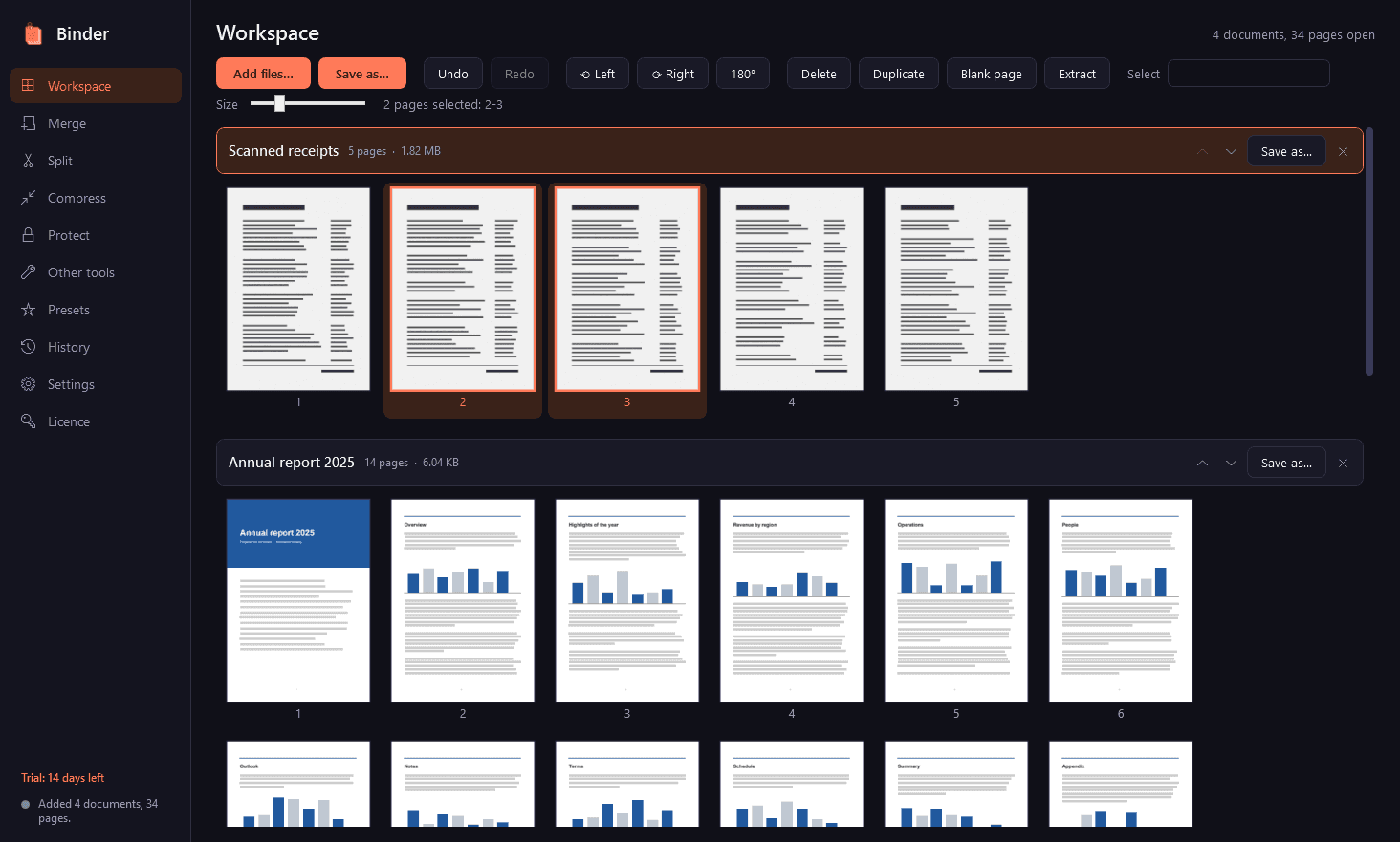
- Drop PDFs on the window, press Add files, or use Send to, Open with Binder, in Explorer.
- Each document is a row of page thumbnails, drawn as they scroll into view, so a file of a thousand pages or several hundred megabytes opens at once.
- Select pages by click, Shift+click, Ctrl+click, or by typing ranges such as 1-5, 8, 12-.
- Drag pages into a new order, or across into another document. Turn them left, right or upside down, delete them, duplicate them, insert a blank page, or pull a selection out as a new document.
- Double-click a page for a large preview. Unlimited undo and redo.
Merge
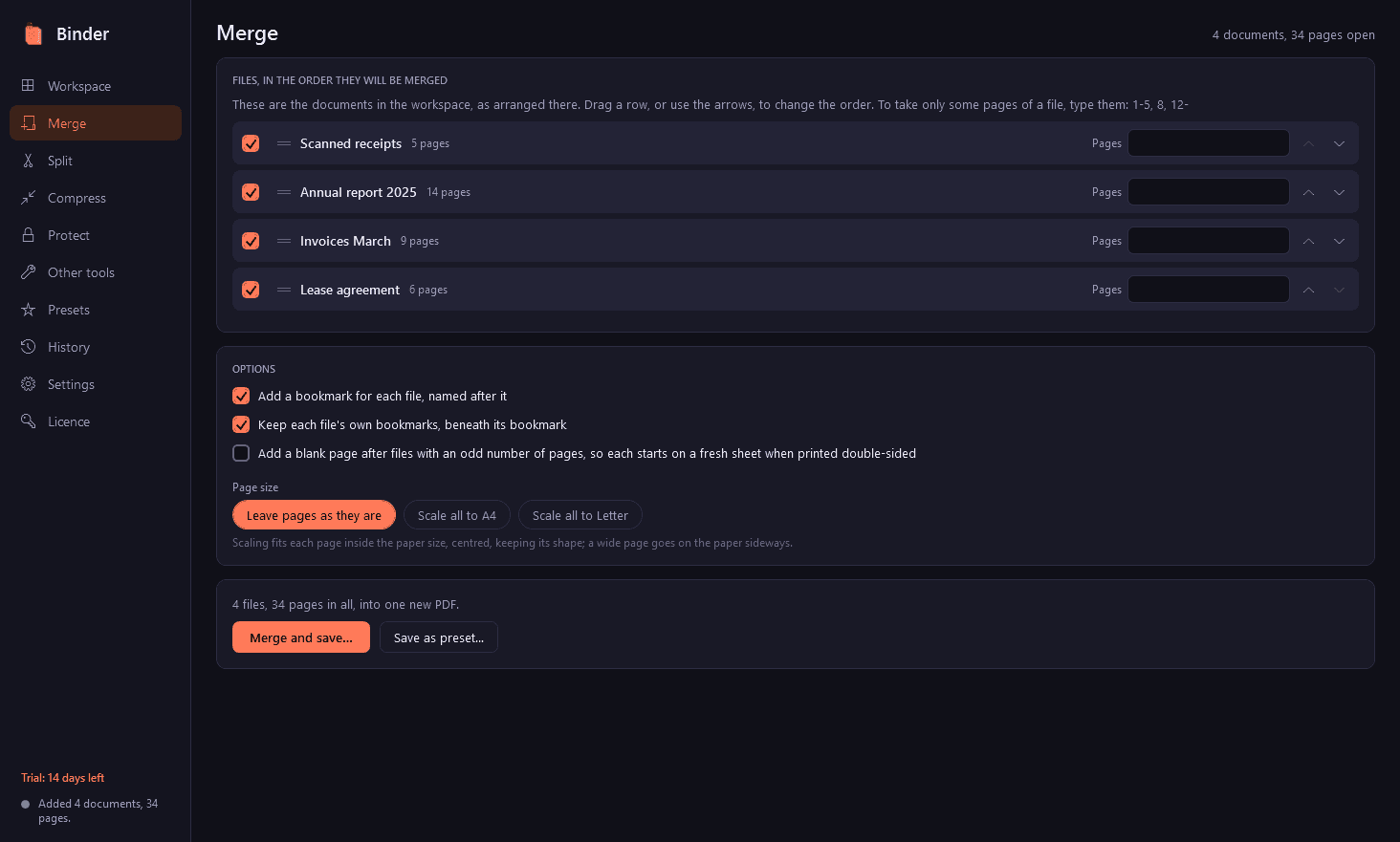
- Combine any number of PDFs in the order you set, taking only chosen page ranges from each if you like.
- A bookmark for each file, named after it, with the file's own bookmarks kept beneath it.
- A blank page after files with an odd number of pages, so each starts on a fresh sheet when printed double-sided.
- Every page scaled to A4 or Letter, or left as it is.
- JPG and PNG pictures dropped in become pages.
Split
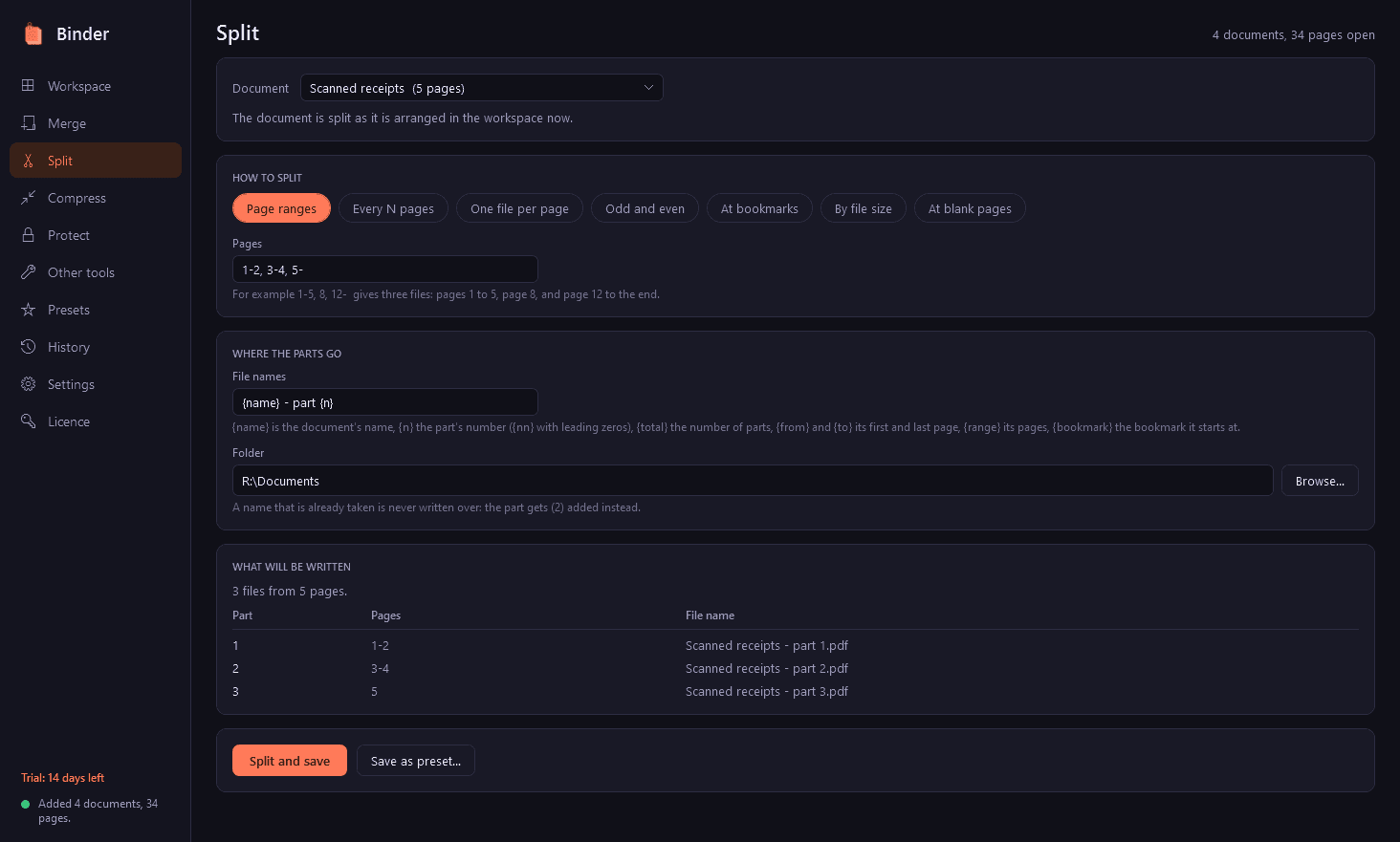
- By page ranges you type, every N pages, one file per page, odd and even pages, or at each top-level bookmark.
- By size: "parts no bigger than 5 MB", for portals and email with upload limits.
- At blank pages, for a scanned stack with separator sheets, with a "how blank is blank" setting and a list of where it will cut before anything is written.
- File names from a pattern: the original name, part number, page range, bookmark title.
Compress
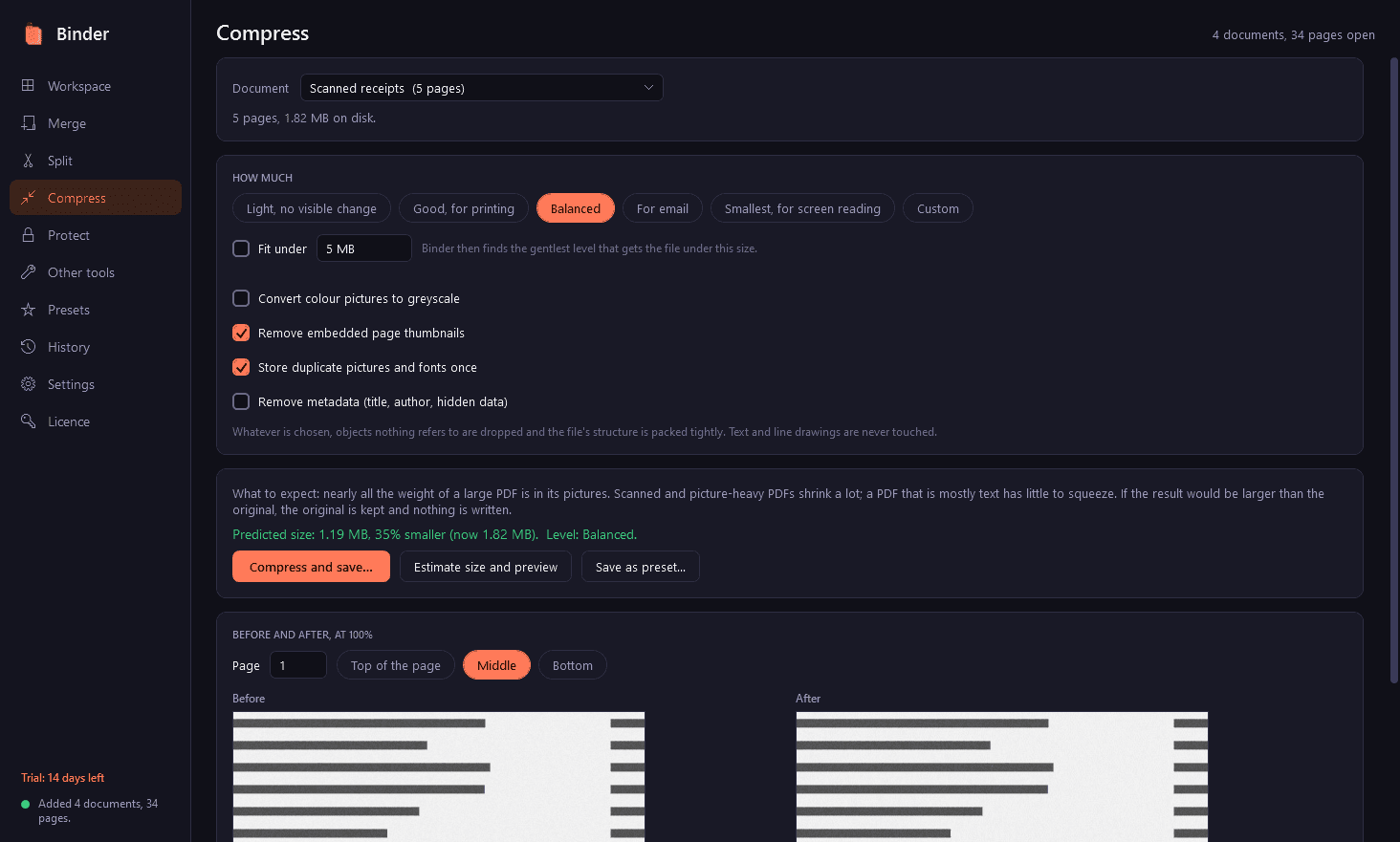
- Levels from "Light, no visible change" to "Smallest, for screen reading", or your own settings: picture resolution and quality, greyscale, duplicate pictures and fonts stored once, thumbnails and metadata removed.
- "Fit under": type a size and Binder finds the gentlest settings that meet it. If the limit cannot be reached without making the document unreadable, it says so and gives you the smallest result that is still legible, not mush.
- The predicted size and a before-and-after look at a page at 100%, before you commit.
- Honest about what to expect: scanned and picture-heavy PDFs shrink a lot; a PDF that is mostly text has little to squeeze. If the result would not be smaller, the original is kept and nothing is written.
Protect
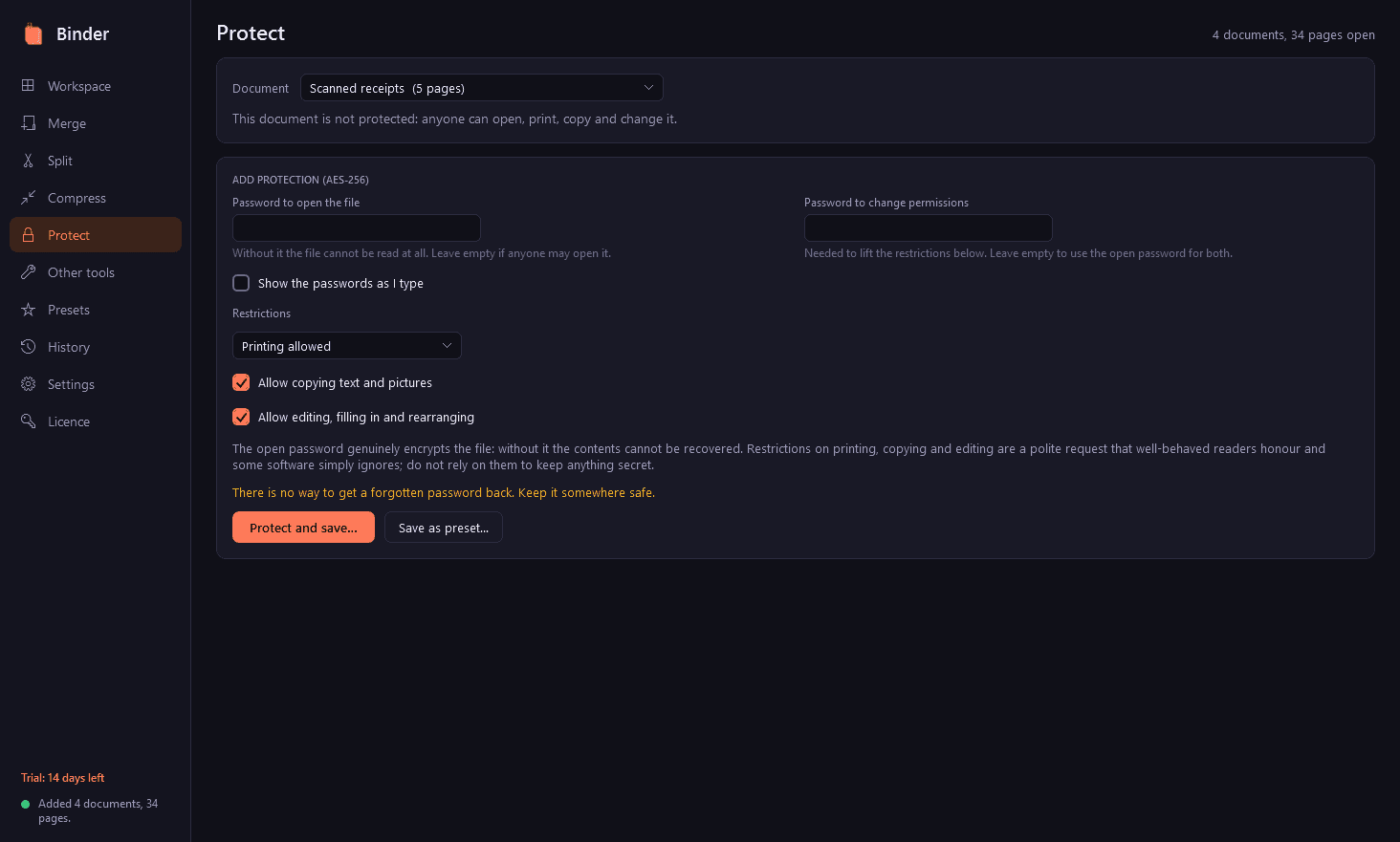
- A password to open the file, and/or a permissions password with restrictions on printing, copying and editing, using AES-256.
- Binder tells you plainly that the open password genuinely encrypts the file, while restrictions are a polite request that some software ignores.
- Protection is removed only when you give the password that allows it. Binder does not guess, crack or bypass passwords, and a restricted file opened without its permissions password can only be viewed.
- A protected file asks for its password once and it is remembered only until you close Binder.
Other tools
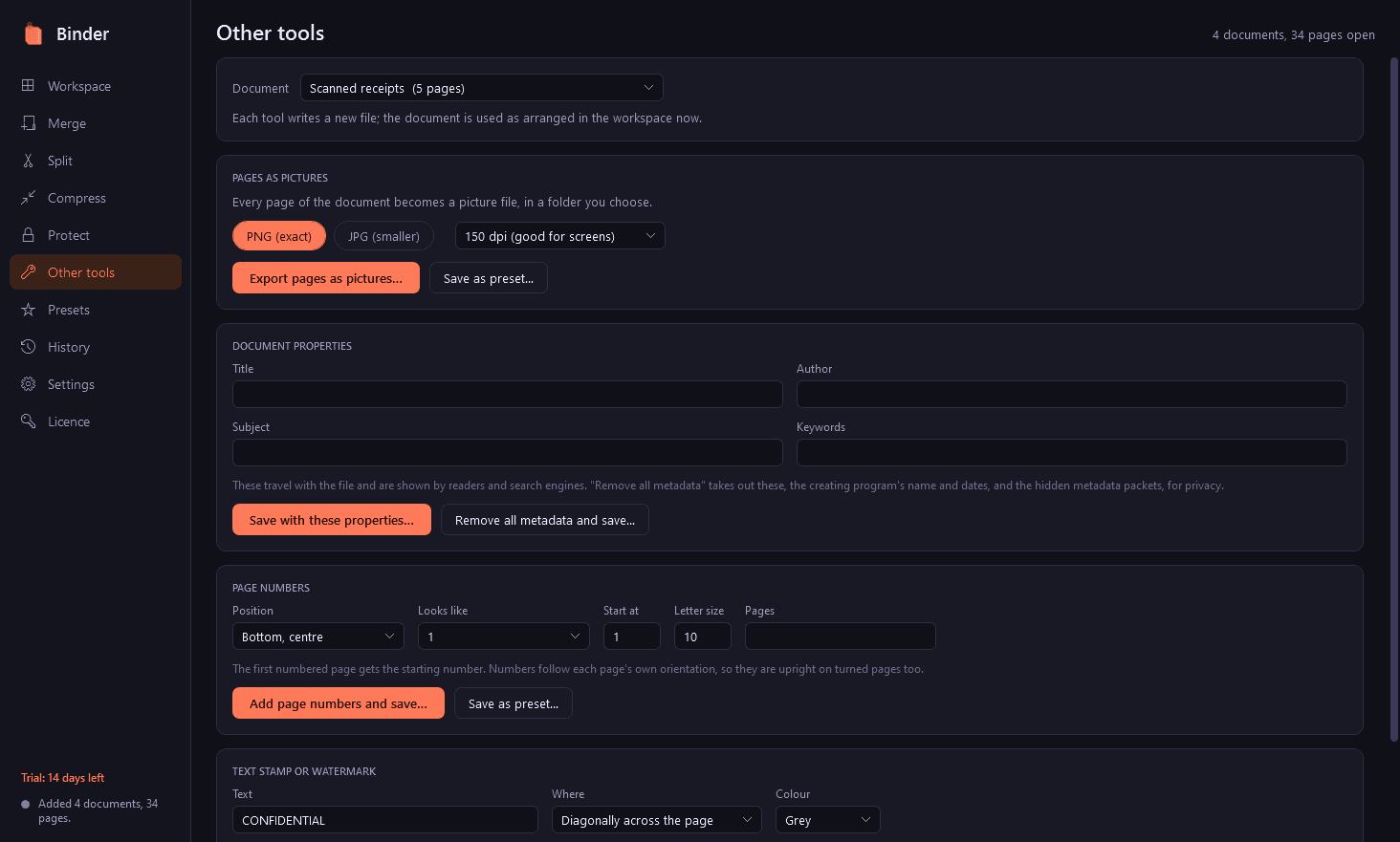
- Pages as pictures, PNG or JPG, at the resolution you choose.
- Title, author, subject and keywords, or all metadata removed for privacy.
- Page numbers: position, format, starting number, which pages.
- A text stamp or watermark across the pages you choose.
What survives
- Bookmarks, links within the document, form fields, annotations, page labels, attached files and accessibility tags are carried through merging, splitting, reordering and compressing, and still point at the right pages afterwards.
- A digitally signed PDF cannot be changed without its signature ceasing to hold. Binder notices signed files and warns you before making anything from one; the signed original is never touched.
- Slightly damaged files that other readers open are repaired on reading, and what Binder writes from them is a clean file.
Careful with your files
- Every result is a new file, with a suggested name beside the original. An existing file is never written over without asking; if you choose to replace an original, it goes to the Recycle Bin first.
- After writing a file Binder opens it again with a second, independent PDF reader and checks that it is valid and has the pages it should, before it says it is done.
- Long jobs show their progress and can be stopped at any moment, leaving nothing half-written behind.
Presets, Send to and history
- Save a tool's settings as a preset: "Compress for email under 5 MB", "Split per page", "Lock with password". Several are ready-made.
- Pin a preset to Explorer's Send to menu, and a right click on files runs it on them.
- A history of what was done: date, action, files, sizes before and after, and a button to open the output folder.
Good to know
- Binder works with whole pages and whole files. It does not edit the text inside a page, recognise text in scans (OCR) or fill in forms.
- Page numbers and watermarks use a built-in font with Western European letters.
- Compression leaves some kinds of picture exactly as they are, because it will not risk changing them: CMYK print pictures, black-and-white fax scans and JPEG 2000.
- It installs for your user account only, never asks for administrator rights, runs no Windows service and has no notification-area icon. It runs only when you open it.
- Light and dark mode, and keyboard shortcuts throughout (F1 lists them).
- Free to try for 14 days with every feature, with no watermark and no page limit on what you make. After that Binder needs a licence to keep working; without one it opens only a screen for entering a key. Two things still work there, so you are never stranded: opening the folder of your last files, and exporting your presets. The PDFs you made are ordinary PDFs that open in any reader, and the passwords you set are yours.
One-time purchase for one PC. Includes every version released in the following 12 months; the version you have keeps working after that.
Screens
A closer look.
Next project · Desktop appsDarkroom →
Need somethinglike this built?
A few lines is enough. You will hear back from a person within one business day.
Start a projector email [email to set] · [booking link to set]