Work / Desktop apps / System
Espresso
Keeps your PC awake while it is busy, then lets it sleep.
C#.NET 8WPF
What it does
Keeps your PC awake while it is busy, then lets it sleep.
Espresso keeps your PC awake when you need it to be. One click on its cup in the notification area stops Windows from going to sleep or turning the screen off: for a set time, on a schedule, or automatically while a program, a download or a long job is running. When the job is done, the PC sleeps normally again.
What it does
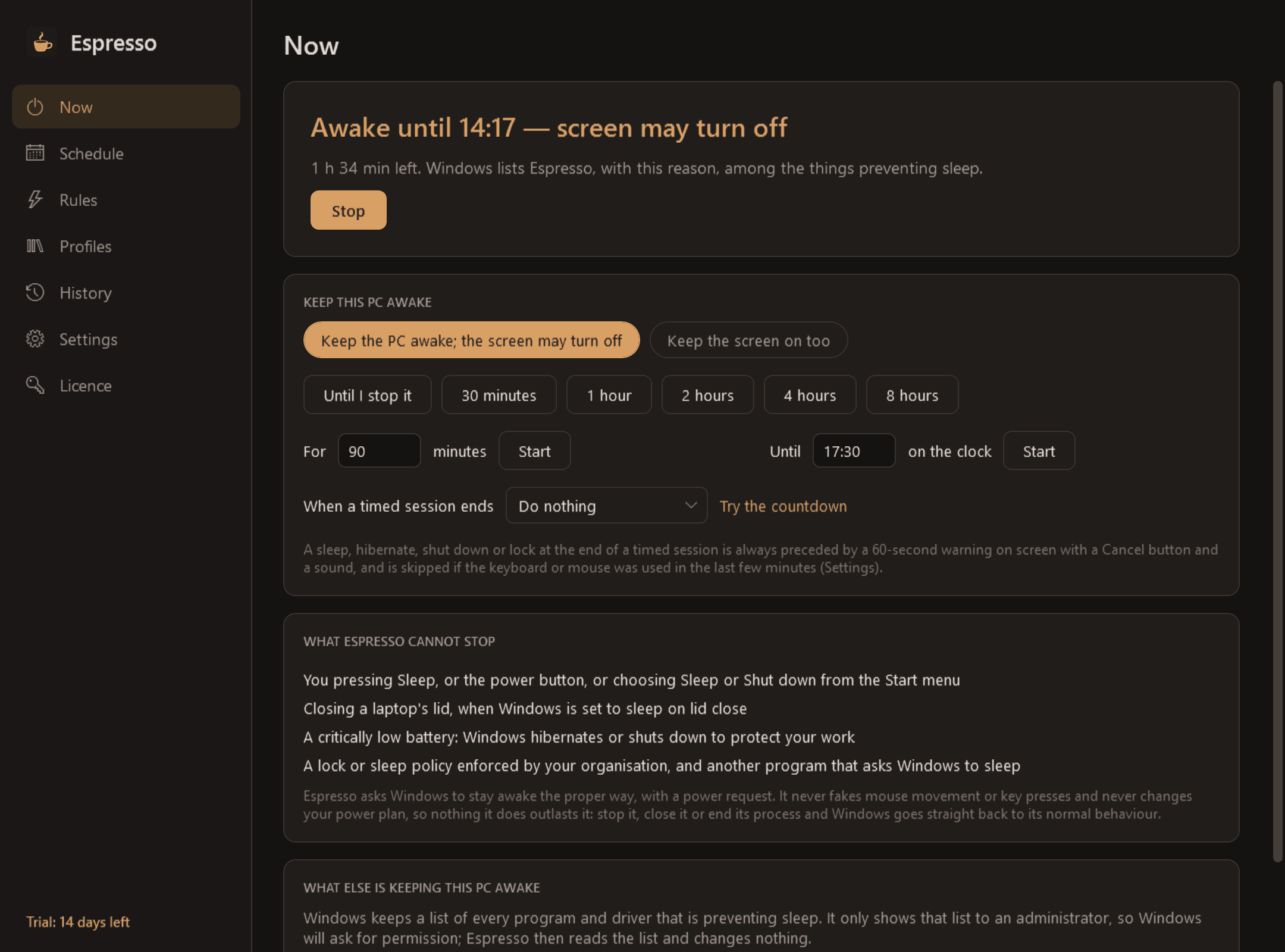
- Click the cup to switch it on or off, or pick a length: until you stop it, 30 minutes, 1, 2, 4 or 8 hours, a length of your own, or until a time on the clock. A keyboard shortcut does the same.
- Two levels: keep the PC awake but let the screen turn off (for downloads and overnight jobs), or keep the screen on too (for reading, presenting and monitoring).
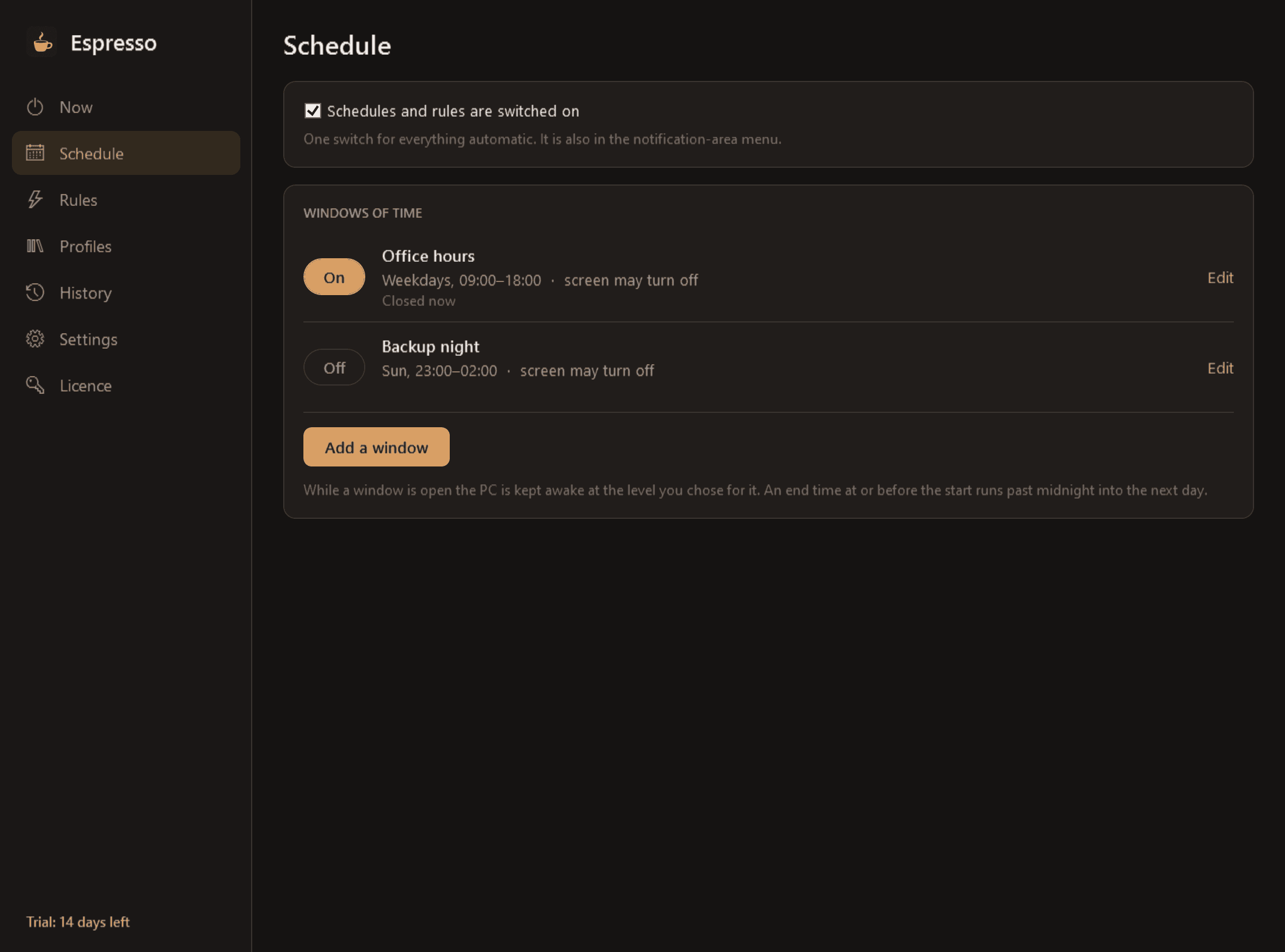
- Schedules: recurring windows by day and time, such as weekdays 09:00 to 18:00.
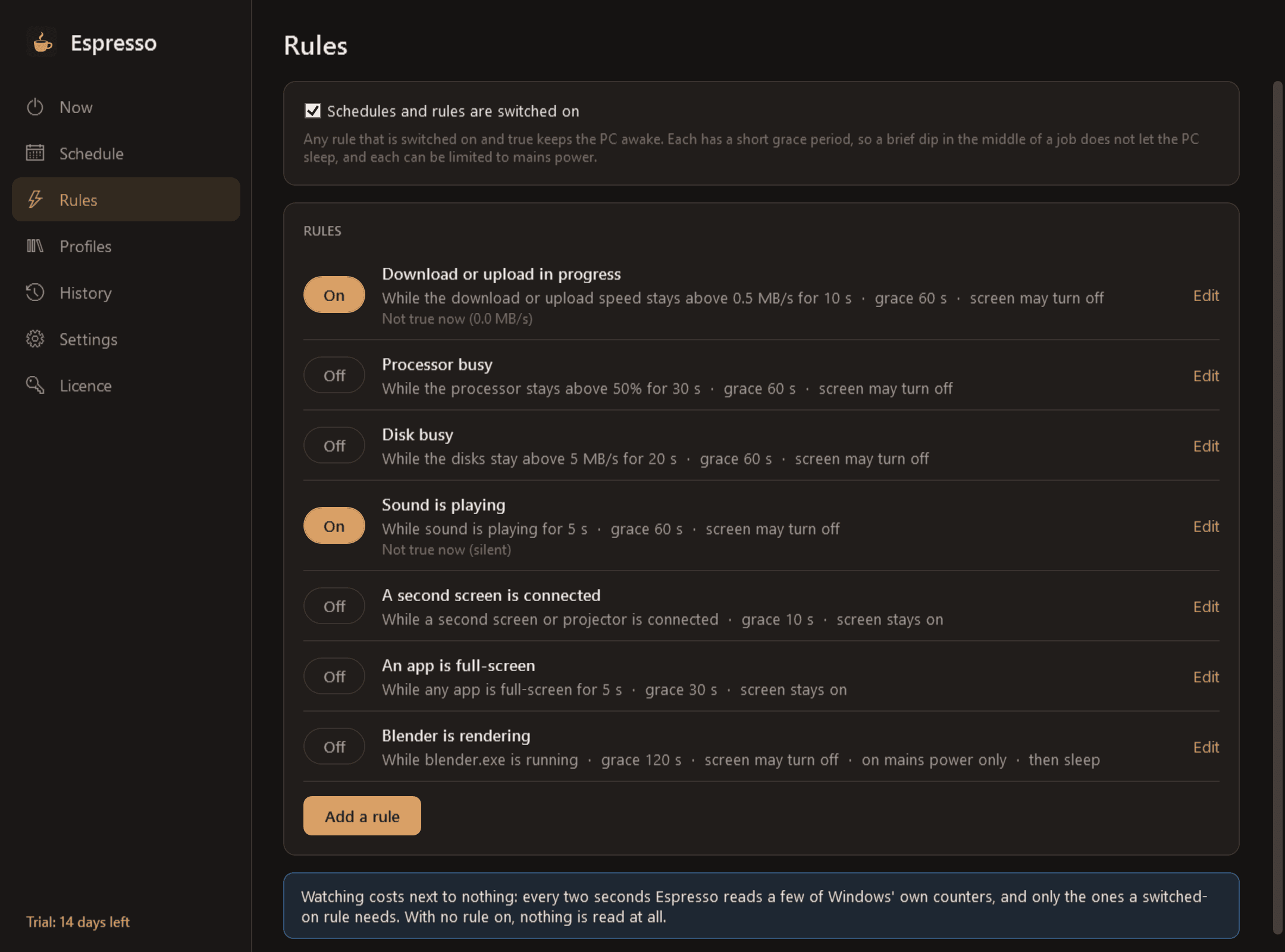
- Automatic rules that keep the PC awake while something is true: a chosen program is running, is the window in front or is full-screen; a download or upload is in progress; the processor or the disk is busy; sound is playing; a second screen or projector is connected; the PC is on mains power.
- Every rule has a grace period, so a brief dip in the middle of a job does not let the PC sleep, and can be limited to mains power.
- Battery guard for laptops: below a battery level you choose (20% to start with) it switches itself off, whatever else is active.
- "Then do this": when a timed session or a rule ends, optionally sleep, hibernate, shut down or lock. A 60-second warning with a Cancel button and a sound always comes first, and it is skipped if someone is using the PC.
- The window says what is going on in one sentence, such as "Awake until 17:30 — screen may turn off" or "Awake because: download in progress, 4.2 MB/s", with the time left and a Stop button.
- "What else is keeping this PC awake": Windows' own list of the programs and drivers that are blocking sleep.
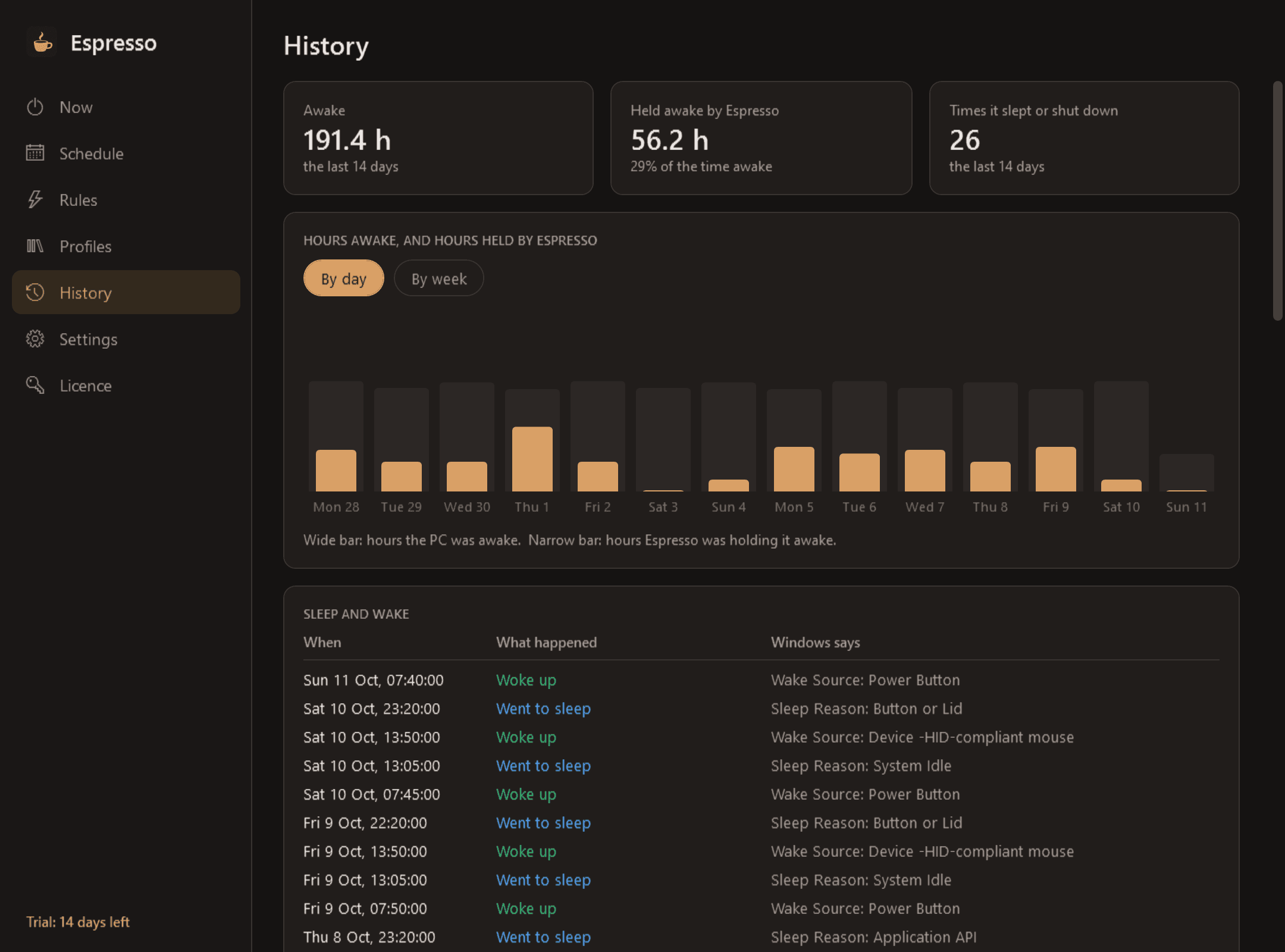
- Sleep history: when the PC slept and woke and what woke it, beside when Espresso was holding it awake, with charts by day and week.
- Profiles such as Working, Overnight job and Presentation. Light and dark mode. A full cup in the notification area when it is on, an empty one when it is off.
Honest about how it works
- Espresso asks Windows to stay awake the proper way, with a power request. Windows lists it by name, with the reason, among the things preventing sleep.
- It never fakes mouse movement or key presses and never changes your power plan. Nothing it does outlasts it: stop it, close it or end its process and Windows goes straight back to normal.
- It cannot stop you pressing Sleep or the power button, a closed laptop lid, a critically low battery, or a lock policy enforced by your organisation, and it says so.
- Watching for activity costs next to nothing: a few of Windows' own counters, read every two seconds, and only the ones a switched-on rule needs.
Good to know
- Seeing what else is keeping the PC awake needs an administrator's permission, because Windows only shows that list to an administrator. Windows asks; Espresso only reads the list.
- What woke the PC comes from Windows' event log, in Windows' own words. Windows often does not know.
- It installs for your user account only and never asks for administrator rights. The only times it uses the internet are to check its licence and to look for updates.
- Free to try for 14 days with every feature. After that Espresso needs a licence to keep working: without one it lets go of the PC, so Windows sleeps as usual, and opens only a screen that asks for a licence key. Your rules, schedules, profiles and history are kept.
One-time purchase for one PC. Includes every version released in the following 12 months; the version you have keeps working after that.
Screens
A closer look.
Next project · Desktop appsJot →
Need somethinglike this built?
A few lines is enough. You will hear back from a person within one business day.
Start a projector email [email to set] · [booking link to set]