Work / Desktop apps / System
Fader
Switch between speakers, headphones and headset with one key, give every app its own volume and device, and let profiles set it all for you.
C#.NET 8WPF
What it does
Switch between speakers, headphones and headset with one key, give every app its own volume and device, and let profiles set it all for you.
Fader is an audio control panel that lives in the notification area. One shortcut switches between your speakers, headphones and headset. Every app that makes sound gets its own volume slider and can be sent to its own output device. And profiles such as "Meeting" or "Headphones" set everything at once, by themselves when a headset connects.
Switching devices
- Click the icon for a flyout of your playback and recording devices, each with a volume slider, a mute button and a live level meter. Click one to make it the default. Choose the device for calls separately, or keep the two together.
- Shortcuts, all changeable: next favourite playback device, next recording device, jump straight to one device, and volume up, down and mute for the current device in steps of 1%, 2% or 5%.
- A small confirmation on screen for every switch, with the new device's name and icon.
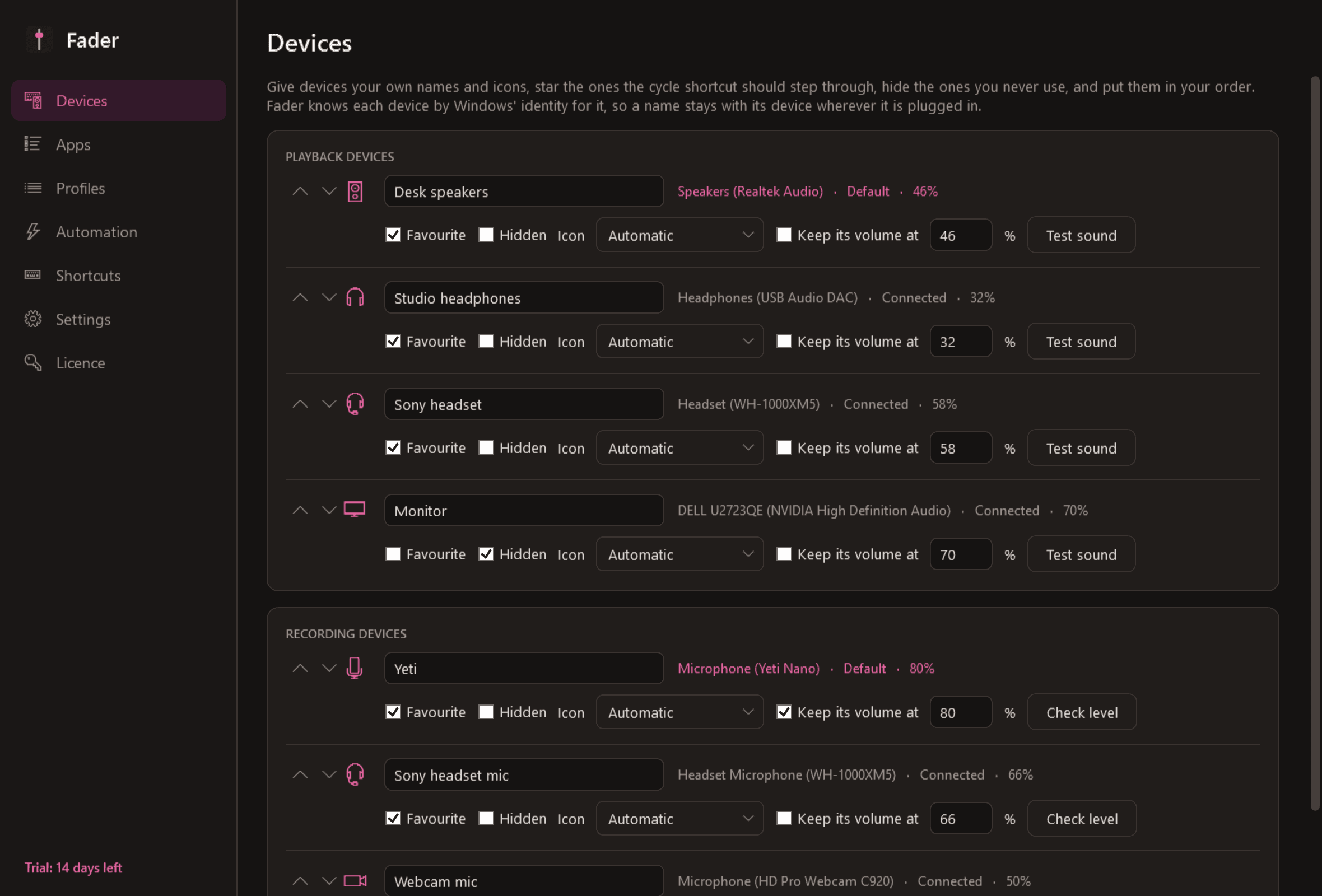
- Give devices your own names and icons, star your favourites, hide the ones you never use, and put them in your order. Each device is remembered by its identity, not its position, so the names stay put.
- The volume you last used on each device is remembered and restored when you switch back, so headphones do not blast at speaker volume.
- A "test sound" button for each output and a level check for each microphone.
Per-app control
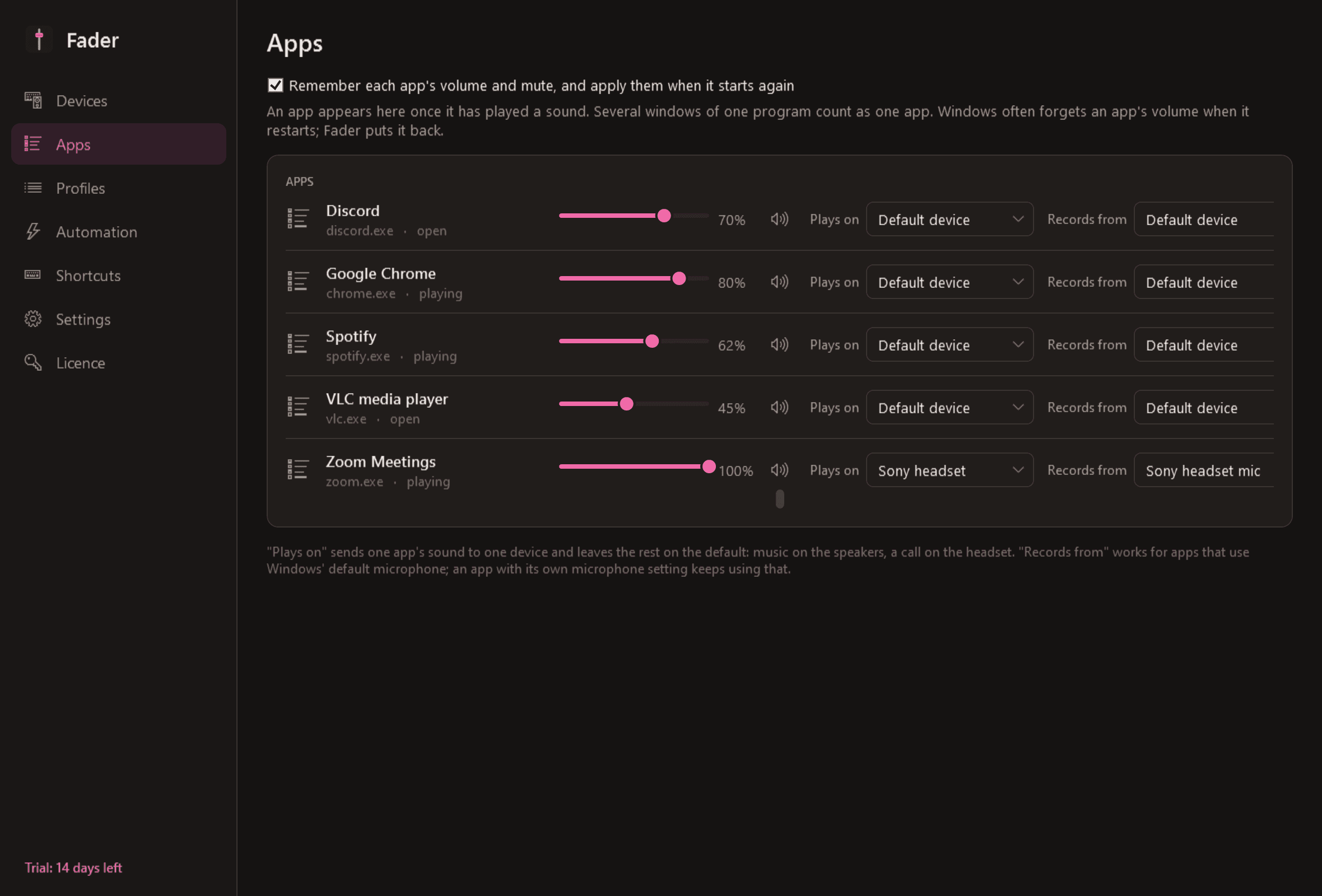
- Every app making sound, with its icon, a volume slider, a mute button and a level meter. Several windows of one program count as one app.
- Each app's volume is remembered and put back whenever that app starts again, which Windows often forgets to do.
- Send an app to a particular output device (music to the speakers, a call to the headset) and, where the app follows Windows' default microphone, choose its input device too. Remembered per app.
- Shortcuts for the app in front: volume up, down and mute.
Microphone
- A global mute shortcut with a clear indicator on screen and a red dot on the notification-area icon.
- Optional push to talk: the microphone stays muted and opens only while you hold a key.
- Volume lock: keep the microphone, or any device, at the level you set. If a call app changes it, Fader puts it back.
Profiles and automation
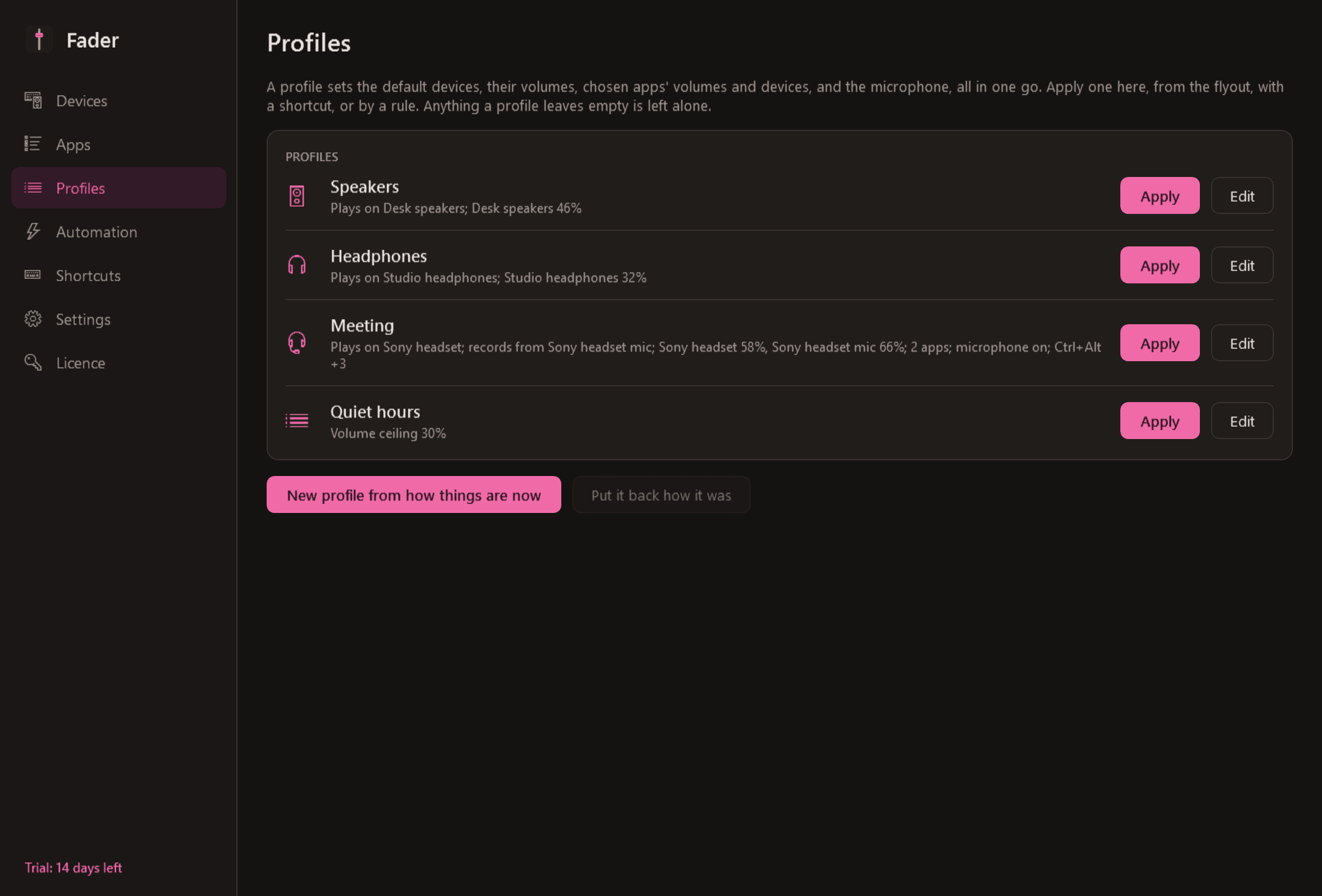
- A profile stores the default playback, recording and calls devices, device volumes, chosen apps' volumes and devices, and whether the microphone is muted. Speakers, Headphones and Meeting come as examples to edit.
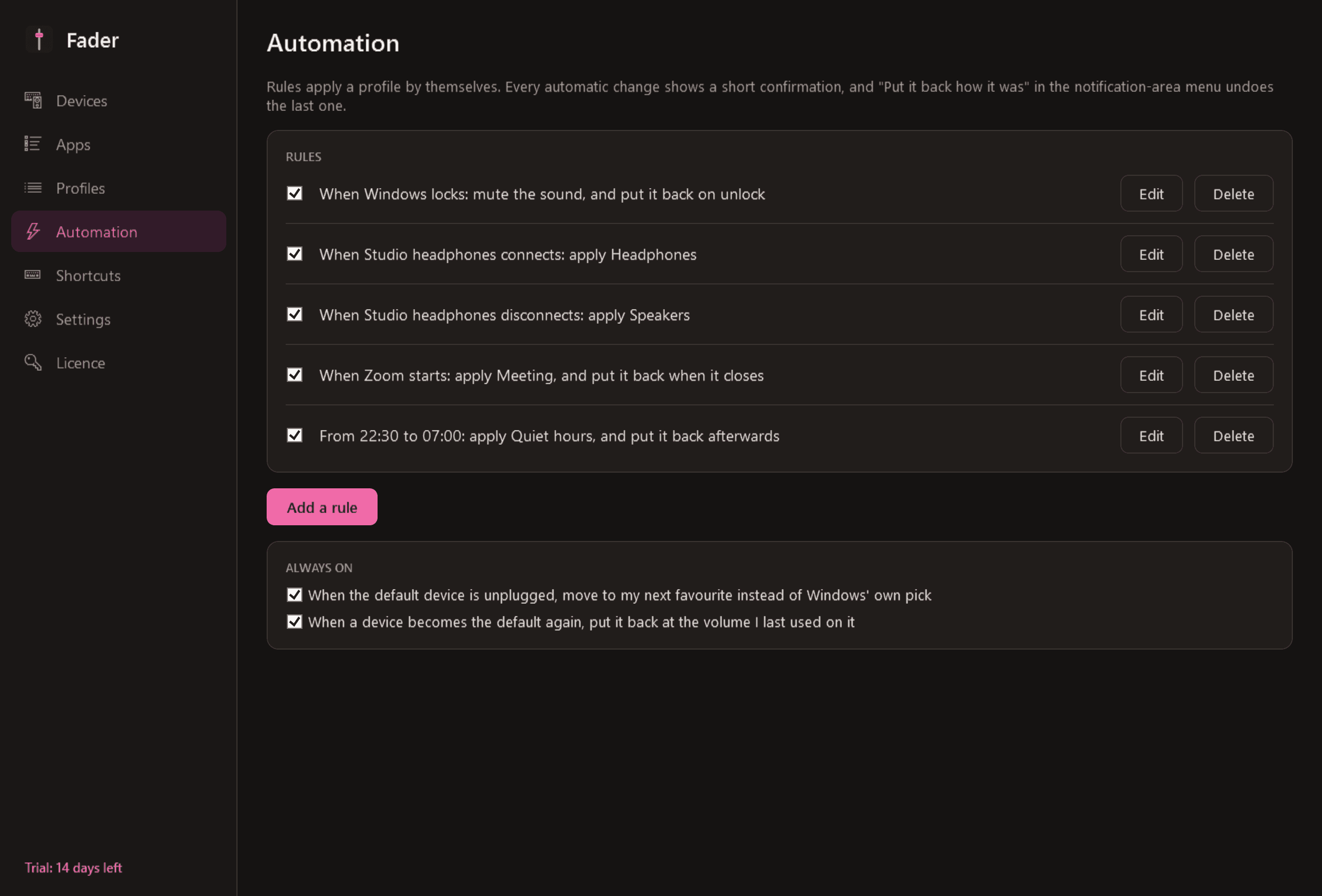
- Apply one from the flyout, the notification-area menu or a shortcut, or let a rule do it: when a device connects or disconnects, when a program starts or closes, at a time of day (quiet hours with a volume ceiling), or when Windows locks and unlocks.
- When your default device is unplugged, Fader moves to your next favourite instead of whatever Windows picks.
- Every automatic change shows a brief confirmation and can be undone from the notification area: "Put it back how it was".
Good to know
- Fader installs no audio driver and no virtual device. It only controls what Windows already has.
- It never records or listens to audio. The level meters show a loudness figure Windows already computes.
- Two features, changing the default device and sending an app to its own device, use parts of Windows that Microsoft does not document. Fader checks them on your PC each time Windows is updated; if one is missing or stops working, that one feature is switched off with a clear message and everything else carries on. Inside a Remote Desktop session Windows does not allow either for its "Remote Audio" device.
- Developed and tested on Windows 10 (22H2).
- Light and dark mode. Negligible processor and memory use; the meters only run while the flyout is open.
- It installs for your user account only, never asks for administrator rights, and runs no Windows service.
- The only thing Fader contacts is this store, to check the licence and look for a new version.
- Free to try for 14 days with every feature. After that Fader needs a licence to keep working. Without one it stops: its shortcuts are given back to Windows, its rules stop, and anything Fader itself had muted is unmuted so your sound works normally. It then opens only a screen for entering a key, which still offers "Export my profiles". Your profiles and settings are kept and work again once a licence is active.
One-time purchase for one PC. Includes every version released in the following 12 months; the version you have keeps working after that.
Screens
A closer look.
Next project · Desktop appsVeil →
Need somethinglike this built?
A few lines is enough. You will hear back from a person within one business day.
Start a projector email [email to set] · [booking link to set]