Work / Desktop apps / Productivity

Keystone
Change what any key, shortcut or mouse button does. No script needed.
C#.NET 8WPF
What it does
Change what any key, shortcut or mouse button does. No script needed.
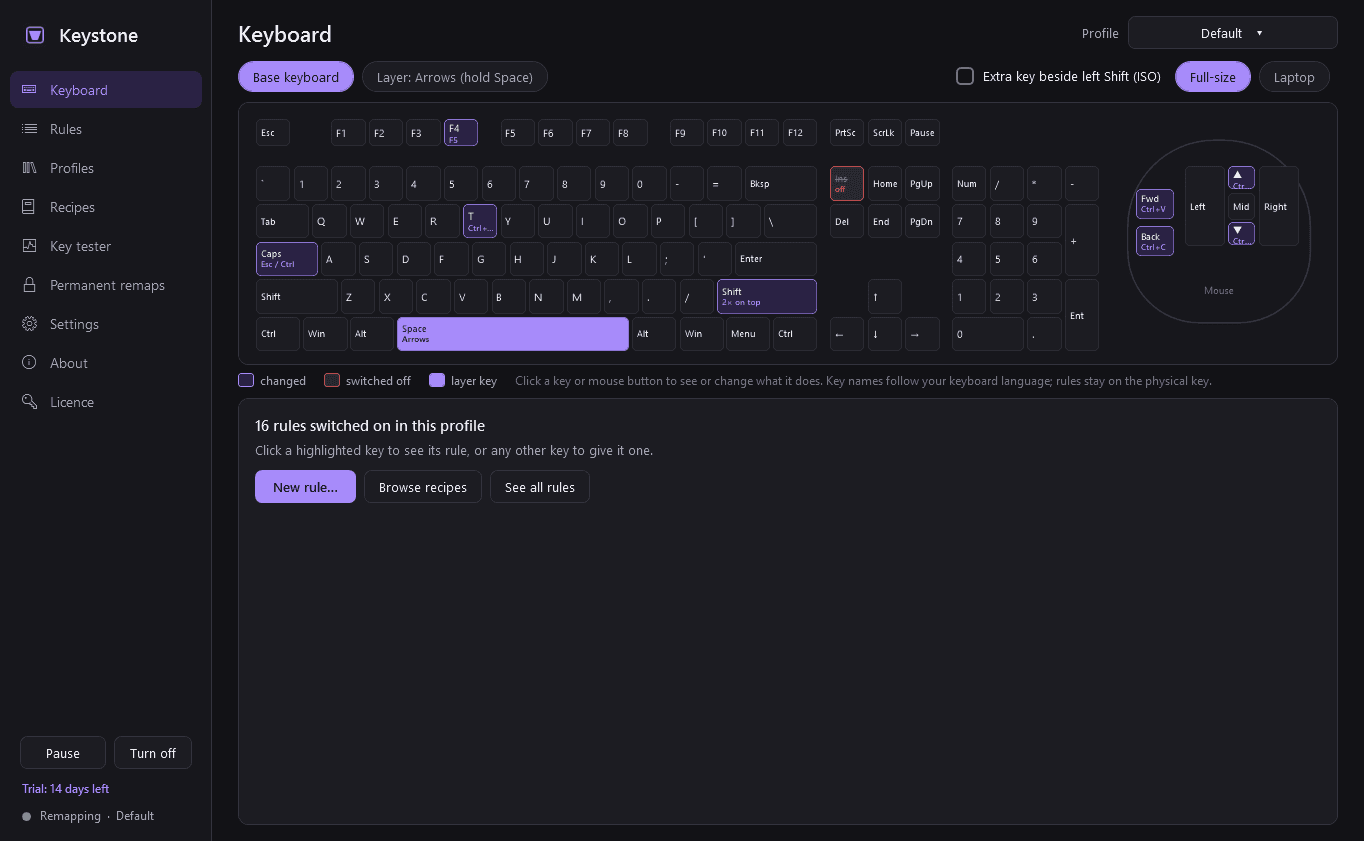
Keystone is a key remapper and hotkey manager. Change what any key, shortcut or mouse button does - everywhere or only in a chosen program - and make your own hotkeys that open programs, folders and websites or run commands. You set it all up on a picture of the keyboard: click a key, press the key it should become. No script to write and no key names to learn.
What you can change
- A key into another key or shortcut: Caps Lock into Esc, Right Alt into Ctrl+C.
- A key switched off: Insert, Caps Lock, the Windows key.
- Tap-or-hold: one thing when tapped, another when held. Caps Lock tapped is Esc, held is Ctrl. The timing is adjustable.
- A layer: while one key is held, other keys take a second meaning. Hold Space and I, J, K, L are the arrow keys.
- Shortcuts, mouse buttons including the side buttons, the scroll wheel with a modifier held, a key double-tapped, a key held down.
- Hotkeys that do things: open a program, file, folder or web address; run a command line; play, pause, next, volume and brightness; minimise, maximise, close, move a window to the next monitor or keep it on top; lock the PC; type a fixed text; play a sequence of key presses with delays.
- Each rule applies everywhere, only in the programs you choose, or everywhere except them. It can also depend on the window's title, or apply only while a game or video fills the screen.
Made to be easy to get right
- A picture of your keyboard, full-size or laptop, with a mouse beside it. Remapped keys are highlighted and show what they do now. Layers are separate views of the same keyboard.
- "Press the key" everywhere a key is asked for.
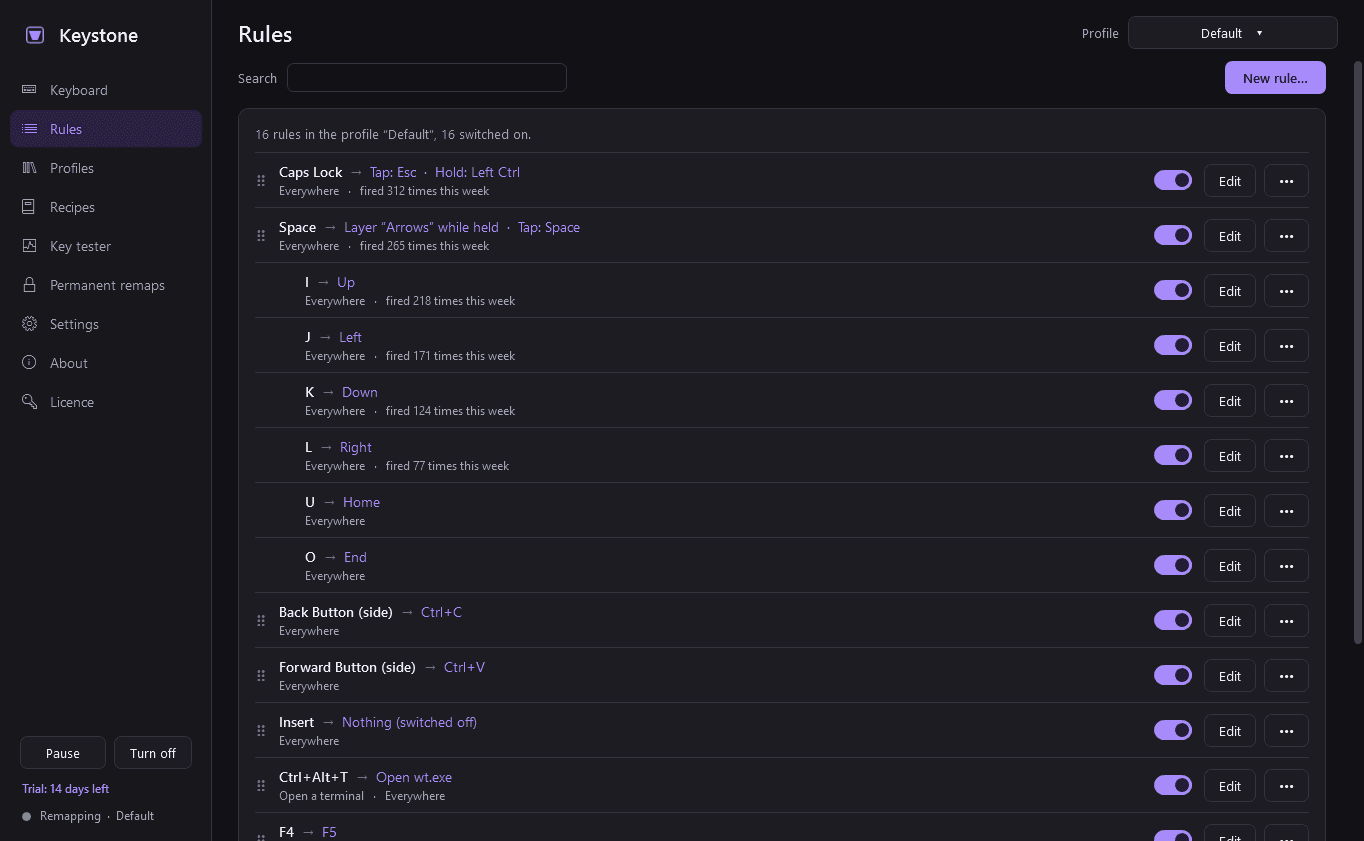
- A plain list of all rules with on/off switches, search and drag-to-reorder.
- Warnings before you save: two rules on the same key, a rule that hides a shortcut Windows or the chosen program uses, and anything that would leave you with no way to type a letter, Enter, Esc or a modifier key.
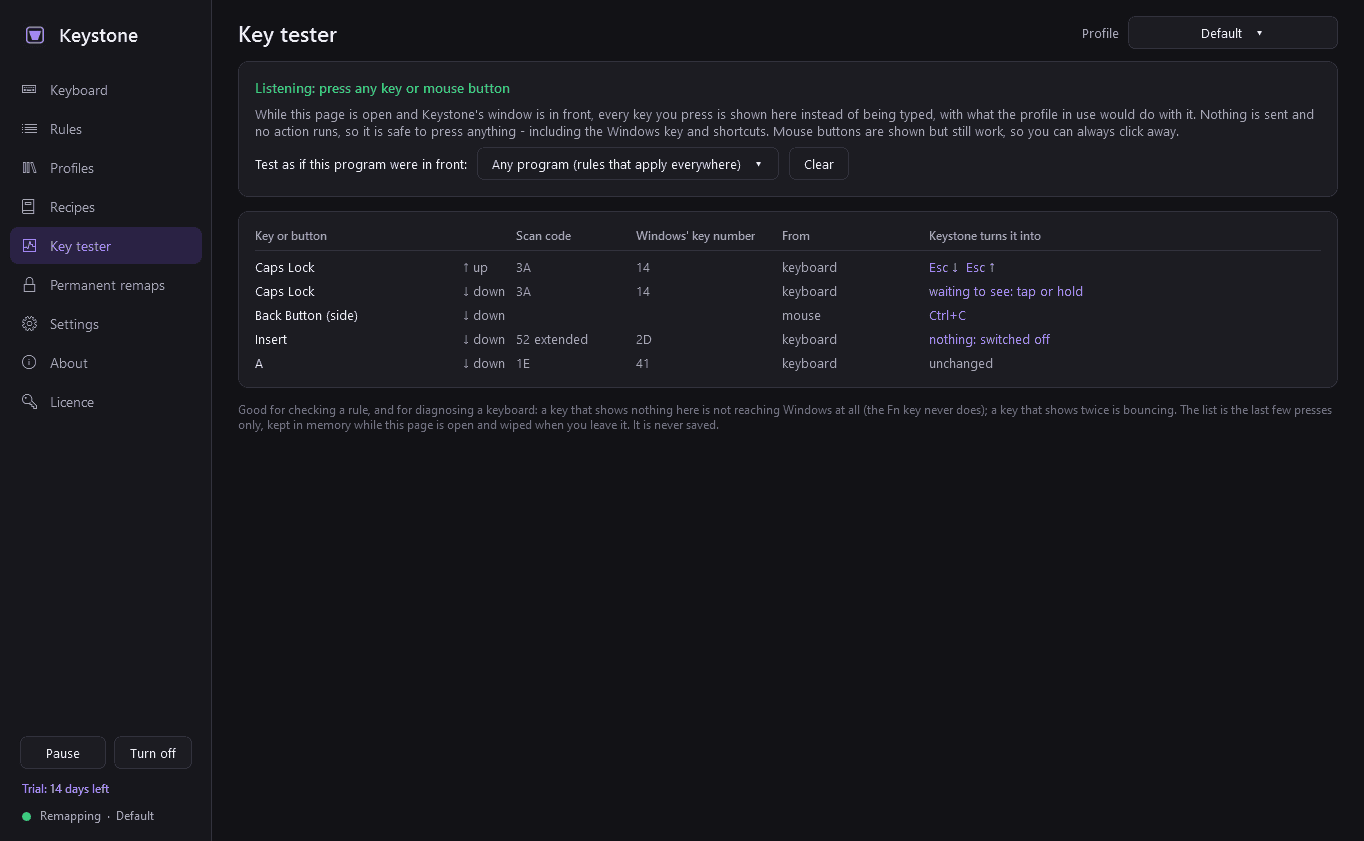
- A key tester that shows exactly which physical key or button Windows sees and what Keystone turns it into. Good for checking a rule, and for diagnosing a keyboard.
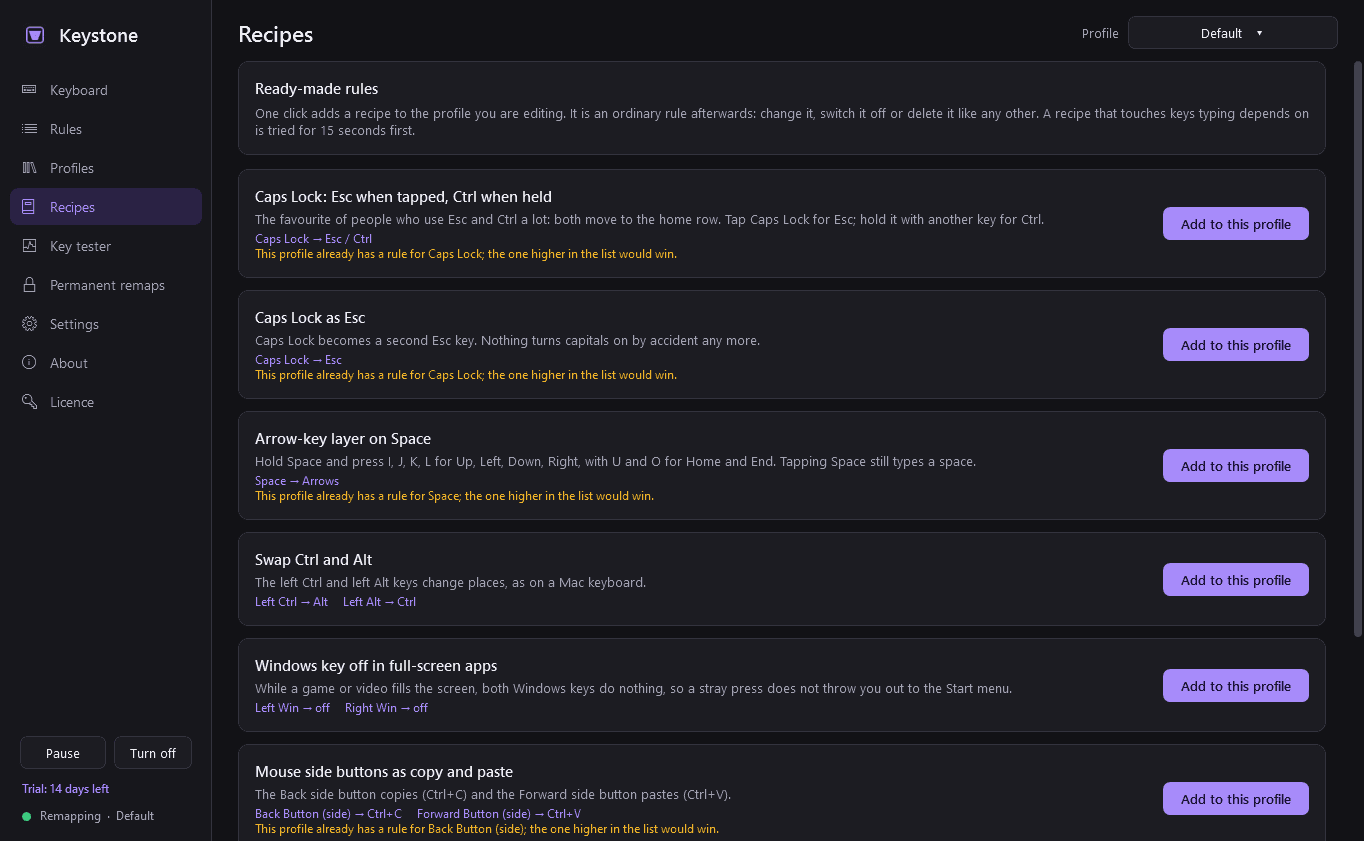
- Ready-made recipes: Caps Lock as Esc and Ctrl, an arrow-key layer, swap Ctrl and Alt, Windows key off in full-screen apps, mouse side buttons as copy and paste.
- Profiles such as Default, Coding, Gaming or Left-handed, switched from the icon near the clock, by a shortcut, or automatically when a chosen program is in front. Import and export them as files.
- Rules belong to the physical key, so they stay right when you change keyboard language. Key names on screen follow the language in use.
You cannot lock yourself out
- A risky change works like changing screen resolution: it applies, and "Keep these changes?" undoes it after 15 seconds unless you click Keep with the mouse.
- An emergency combination Keystone can never remap: hold both Shift keys and press Esc three times, and all remapping switches off at once.
- "Keystone (start with remapping off)" in the Start menu, for repairing a bad profile.
- A pause shortcut and a pause switch on the icon near the clock. The icon shows clearly when Keystone is paused or off.
- If Keystone is ever closed or crashes, every key is normal again at once, with no modifier left stuck down.
Your keys stay yours
- To change what a key does, Keystone has to see every key you press. It is not a keylogger and never behaves like one.
- Each key press is looked at in memory to decide whether a rule applies, and then forgotten. Key presses are never written to disk, never logged, never sent anywhere and never put in an error report.
- The only thing recorded is a number: how often each rule fired ("this remap fired 312 times this week"). You can switch that off.
- No cloud, no sync, no telemetry. The only times Keystone uses the internet are to check its licence and to look for updates.
Permanent remaps, if you want them
- For a simple key-to-key swap that must work at the sign-in screen, in administrator windows and in games, Keystone can write it into Windows' own keyboard map instead.
- That needs administrator rights (Windows asks; Keystone never works around it) and a restart to take effect.
- Keystone records what was there before, and "Remove permanent remaps" puts it back exactly.
Good to know
- Ctrl+Alt+Del and Win+L cannot be changed: Windows keeps them for itself.
- The Fn key on most laptops is invisible to software and cannot be remapped.
- Remaps do not apply inside programs running as administrator unless Keystone is run as administrator too.
- Some games with anti-cheat block or object to remappers. Pause Keystone for those.
- A tap-or-hold key acts when it is released rather than when it is pressed. That is how a tap is told from a hold.
- It installs for your user account only and never asks for administrator rights. No Windows service, no driver.
- Free to try for 14 days with every feature. After that Keystone needs a licence to keep working: without one it stops watching the keyboard and mouse altogether, every key does what Windows intends, and it opens only a screen that asks for a licence key. Your profiles are kept, you can still export them, and you can still remove permanent remaps.
One-time purchase for one PC. Includes every version released in the following 12 months; the version you have keeps working after that.
Screens
A closer look.
Next project · Desktop appsValet →
Need somethinglike this built?
A few lines is enough. You will hear back from a person within one business day.
Start a projector email [email to set] · [booking link to set]