Work / Desktop apps / Productivity

Reel
Record a region, a window or the whole screen to MP4 or GIF, and trim it before you send it.
What it does
Record a region, a window or the whole screen to MP4 or GIF, and trim it before you send it.
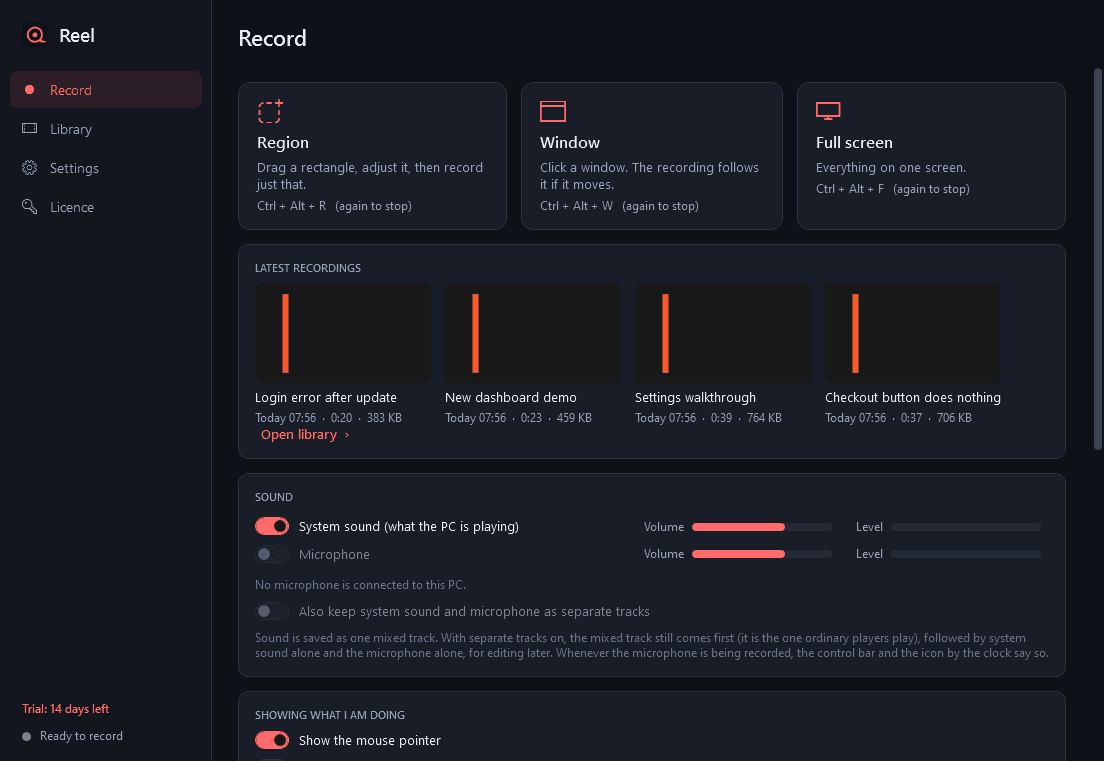
Reel is a screen recorder for the short clip: a how-to for a colleague, a bug report, a quick demo. One shortcut to record a region, a window or the whole screen, with sound if you want it, and a quick editor that opens the moment you stop.
It sits in the notification area and starts when you sign in. There is no Windows service, and it needs no administrator rights to install or to run.
What it does
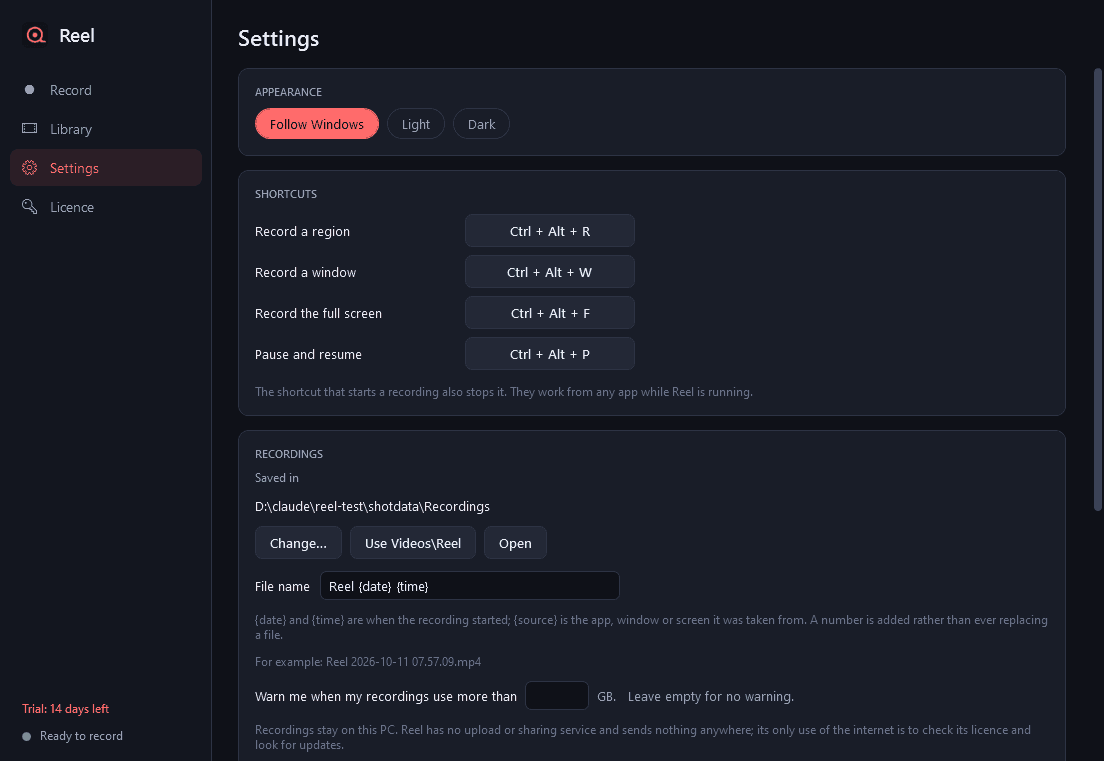
- Record a region (drag a rectangle, adjust or move it, or pick a common size such as 1280 × 720), a window (the recording follows it when it moves), or a full screen of your choice. Each has its own shortcut, and you can change them all.
- The same shortcut stops; another pauses and resumes. An optional 3-second countdown before the first frame.
- A small control bar while recording, with the time, the file size so far, pause, stop and discard. It is kept out of the video.
- MP4 with H.264 video and AAC sound, at 15, 30 or 60 frames a second, in three quality levels, at full size, 1080p or 720p, with an estimate of megabytes a minute.
- System sound and microphone, each with its own switch, volume and live level meter. One mixed track, or the mix plus separate tracks for editing later. Whenever the microphone is being recorded, the control bar and the icon by the clock say so.
- A camera bubble, round or rectangular, in a corner of the recording. Drag it to move it, turn the mouse wheel to resize it.
- The mouse pointer on or off, a highlight ring around it, and a ripple on left and right clicks.
- Key display: shows the keyboard shortcuts you press, on screen, as you press them.
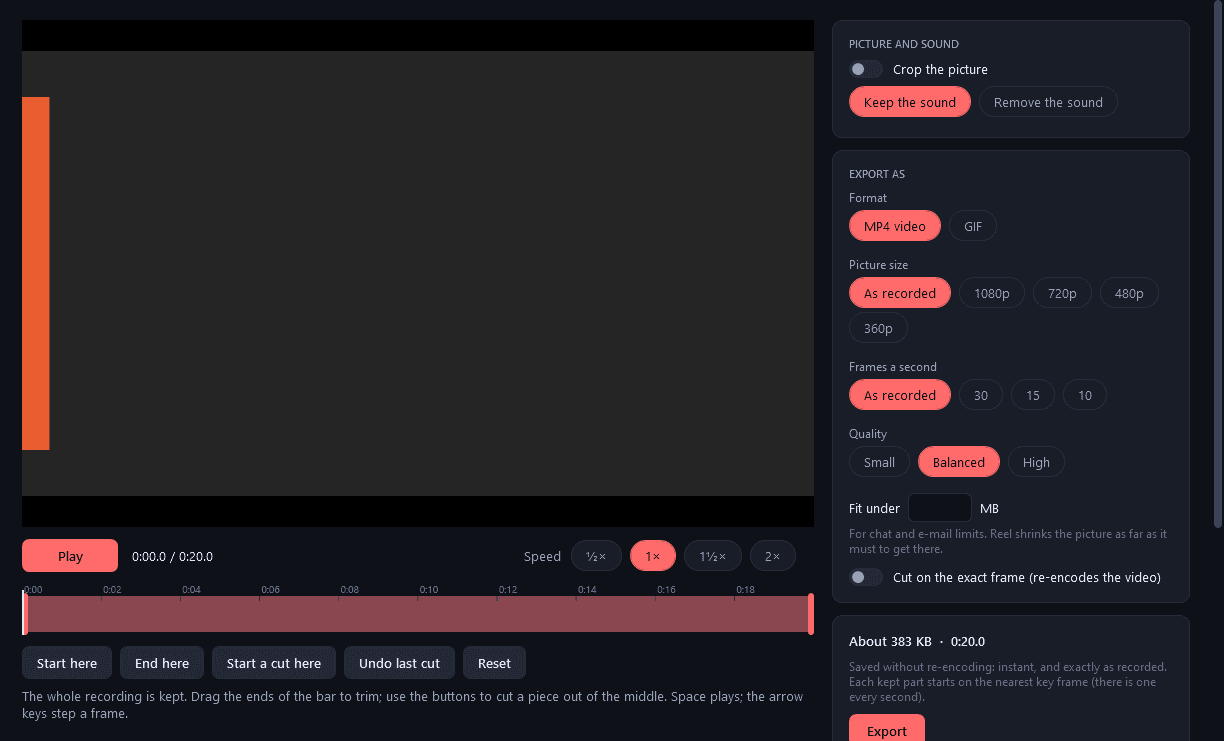
- Quick editor: play, trim the start and end, cut a piece out of the middle, crop, change speed, remove the sound.
- Export as MP4 or GIF, with size, frame rate and quality choices and a predicted file size, including "fit under N MB" for chat and e-mail limits. Save a still frame as an image. Copy the file to the clipboard, or drag it straight into another app.
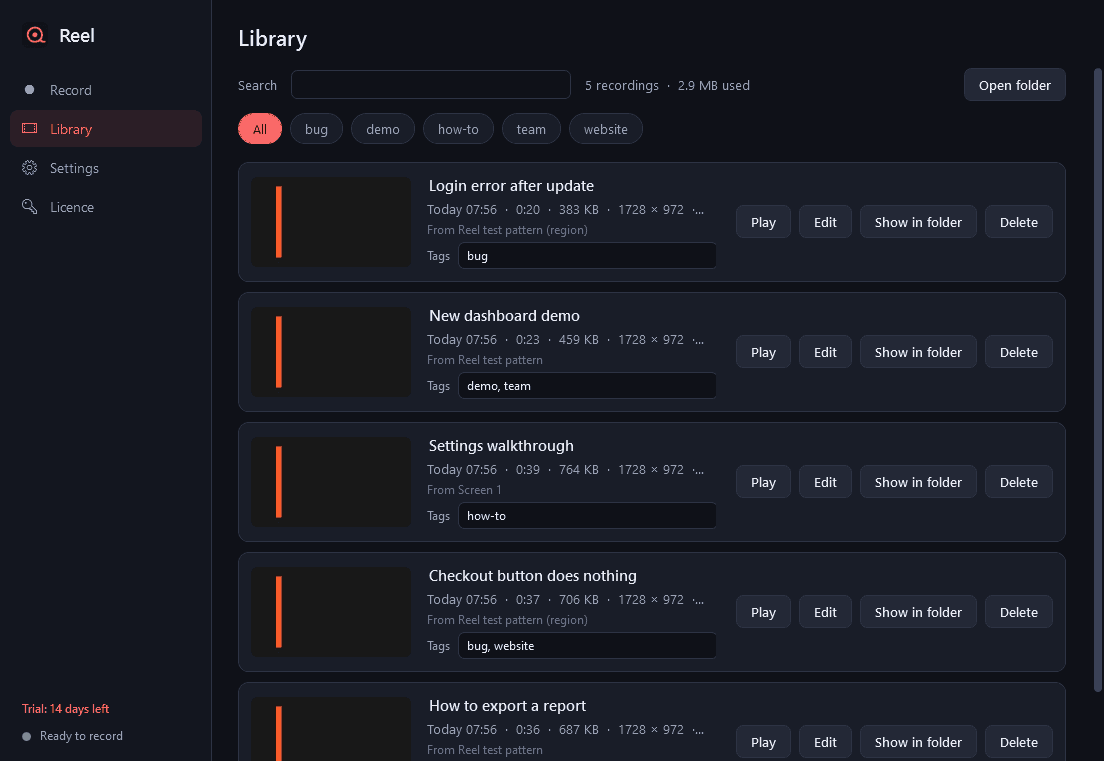
- Library: every recording with its thumbnail, date, length, size, resolution and the app or window it came from, with your own titles and tags, search and filter. Play, edit, show in folder, or delete to the Recycle Bin.
- Stops by itself at a time or size limit you set. Tray menu with every recording mode and your latest recordings. Light and dark mode.
What it does not do
- No upload, no sharing links, no account. Recordings stay on your PC.
- It is not a game recorder or a streaming tool.
Good to know
- Reel draws no coloured border around what it records, on Windows 10 or 11.
- Sound and picture are timed from one clock, so they stay together however long the recording runs.
- If Reel or the PC stops unexpectedly in the middle of a recording, the part already recorded is saved the next time Reel starts. Recording also stops by itself, keeping the file, when the disk is nearly full.
- Trimming or cutting an MP4 with nothing else changed does not re-encode the video: it is instant and loses nothing. Each kept part then starts on the nearest key frame (there is one every second); tick "Cut on the exact frame" to re-encode instead.
- A GIF gets a palette chosen from its own colours and is dithered, but GIFs have no sound and grow quickly: keep them short and small.
- Key display shows only shortcuts by default: keys pressed with Ctrl, Alt or Win, and the function keys. Ordinary typing is not shown, so passwords and messages are not revealed. A clearly labelled setting shows every key. Keys are only drawn into the video; Reel never stores or logs them.
- Window mode records the window's place on the screen, so anything that covers the window is recorded too. Reel brings the window to the front when recording starts.
- Video that Windows marks as protected (some streaming services) is recorded as black. Reel leaves it that way.
- Reel uses the encoders that come with Windows, on the graphics card when it has one. It uses next to no processor time while it waits.
- The only network use is the licence check and the update check with this store.
- Free to try for 14 days with every feature and no watermark. After that Reel needs a licence to keep working; without one it opens only a screen that asks for a licence key, and gives its shortcuts back to Windows. Recordings you have saved are ordinary video files and stay yours; your library is kept and comes back when you enter a key.
One-time purchase for one PC. Includes every version released in the following 12 months; the version you have keeps working after that.
Screens
A closer look.
Need somethinglike this built?
A few lines is enough. You will hear back from a person within one business day.