Work / Desktop apps / Security
Sentinel
See which app is using your microphone or camera, with a log of every use.
C#.NET 8WPF
What it does
See which app is using your microphone or camera, with a log of every use.
Sentinel shows which app is using your microphone or camera right now, keeps a log of every use, and tells you when something unexpected happens.
It sits in the notification area and starts when you sign in. There is no Windows service, and it needs no administrator rights to install or to run.
What it does
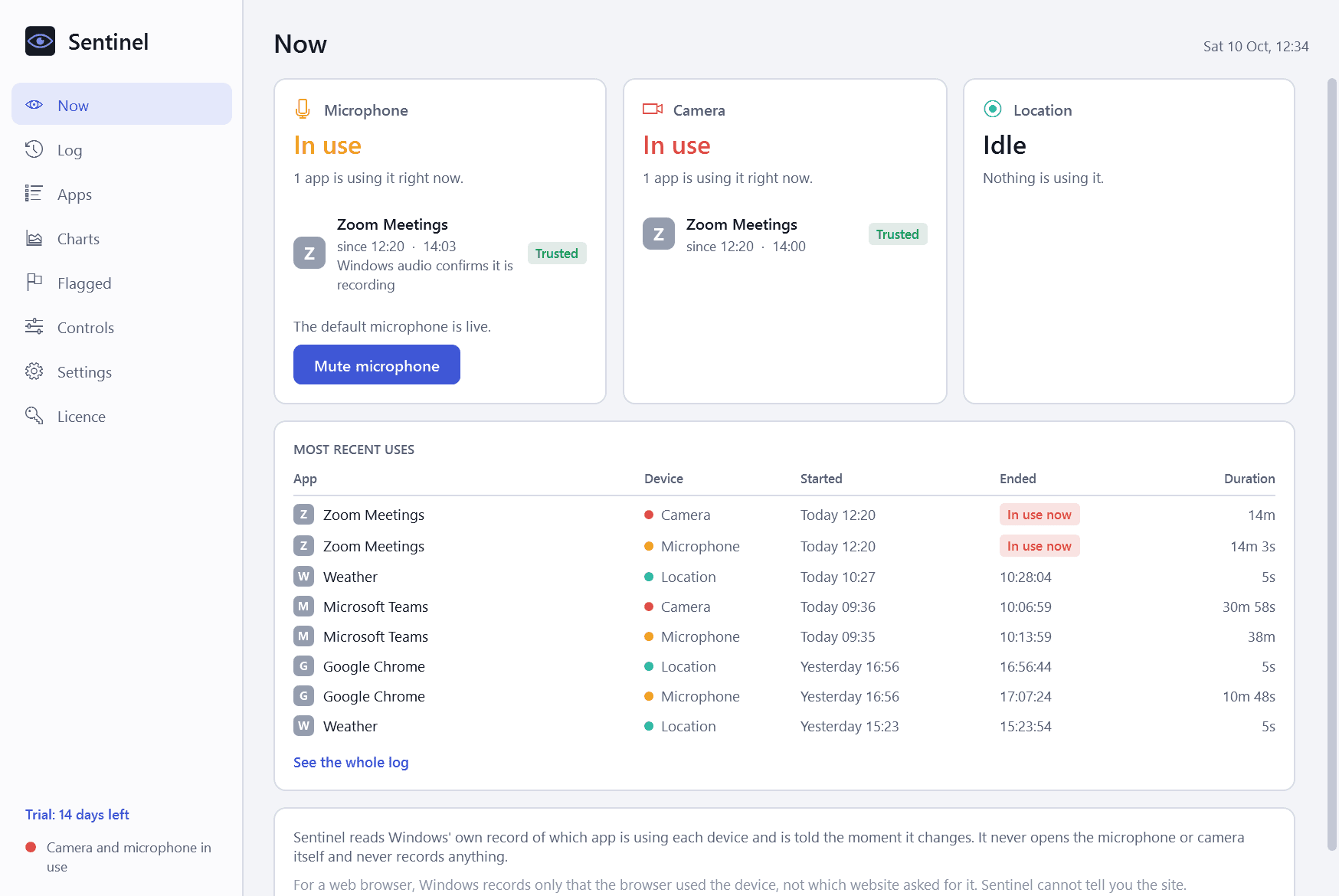
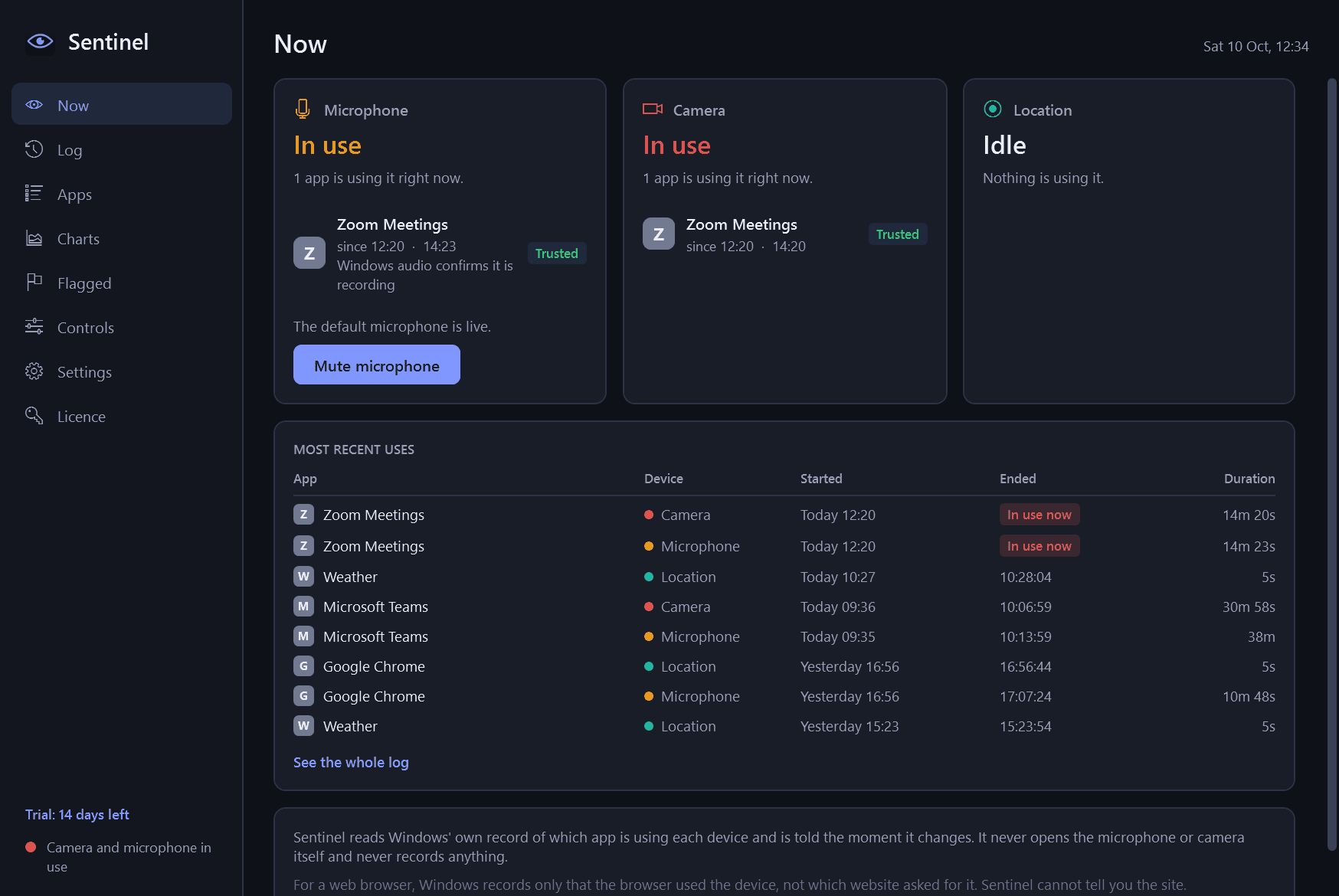
- Now: the microphone, the camera and location each shown as idle or in use, with the app using them and for how long.
- Log: every use with app, device, start, end and duration, newest first. Filter by device, app and date, and export to CSV.
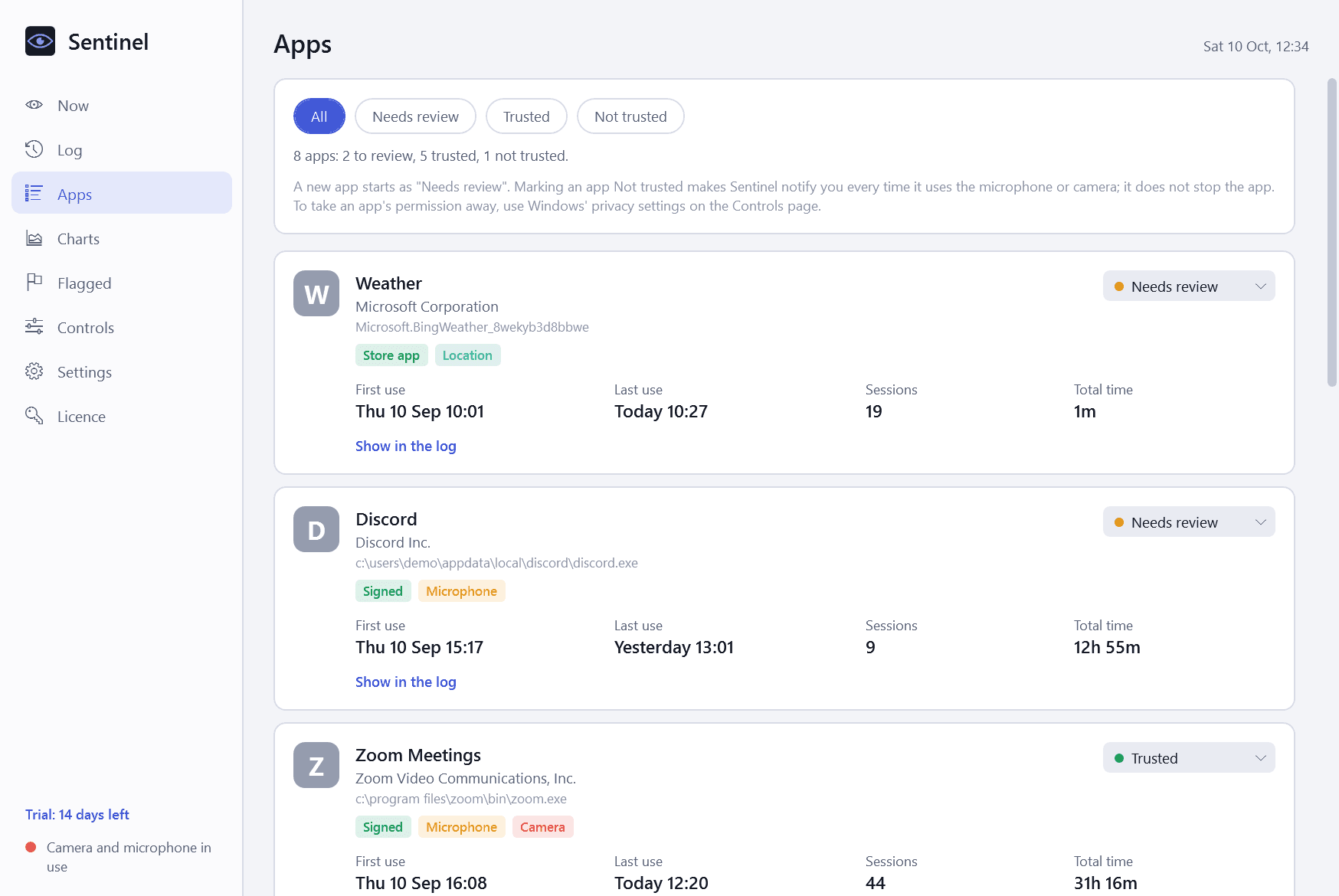
- Apps: every app that has ever used a device, with its publisher, whether its file is signed, first use, last use, number of sessions and total time. Mark each Trusted or Not trusted; new apps start as "needs review".
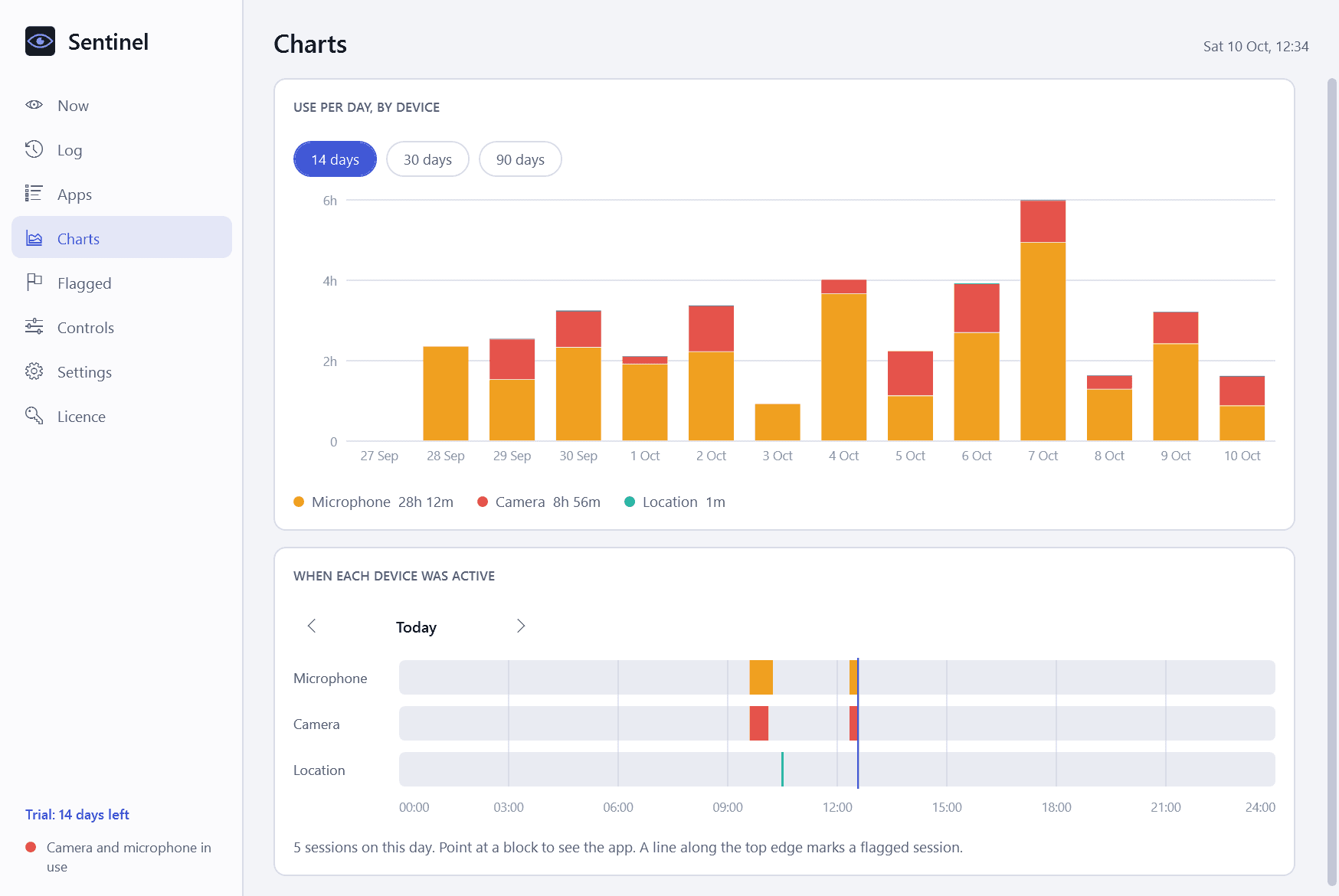
- Charts: use per day by device, and a timeline of any day showing when each device was active.
- Flagged: sessions that ran while the PC was locked or nobody was at it, sessions in the middle of the night, and unusually long ones.
- A small badge on screen while the microphone or camera is in use, naming the app, in the corner you choose. The notification-area icon changes colour too.
- Alerts as Windows notifications, each with its own switch: an app using the microphone or camera for the first time, a Not trusted app using either, use while the PC is locked or left alone, and a session that runs longer than you allow.
- A keyboard shortcut and a notification-area button that mute and unmute your microphone for every app at once.
- Shortcuts to Windows' own privacy settings, where you can take an app's permission away, and an optional switch that turns the camera off in Windows.
- Light and dark mode.
Good to know
- Sentinel only observes which app is using a device. It never opens the microphone or camera itself and never records, samples or listens to anything.
- It reads the record Windows itself keeps of device access and is told the moment that record changes, so it reacts within a second or two and uses almost no processor time.
- For a web browser, Windows records only that the browser used the device, not which website asked for it. Sentinel cannot tell you the site, and says so.
- Windows keeps only the latest use of each app, so Sentinel has to be running to log every use. A use that came and went while it was closed is logged afterwards from Windows' record.
- Location look-ups are logged and charted but never flagged or notified, and can be switched off.
- Switching the camera off needs an administrator, so Windows asks for approval each time. Sentinel does not close or block other apps.
- Everything stays on your PC. The only network use is the licence check and the update check with this store.
- Free to try for 14 days with every feature. After that Sentinel needs a licence to keep working; without one it stops logging and alerting and opens only a screen that asks for a licence key. The log it has made is kept.
One-time purchase for one PC. Includes every version released in the following 12 months; the version you have keeps working after that.
Screens
A closer look.
Next project · Desktop appsVigil →
Need somethinglike this built?
A few lines is enough. You will hear back from a person within one business day.
Start a projector email [email to set] · [booking link to set]