Work / Desktop apps / Productivity
Shutter
Capture any part of the screen, annotate it, and find it again later.
C#.NET 8WPF
What it does
Capture any part of the screen, annotate it, and find it again later.
Shutter is a screenshot and annotation tool: one shortcut to capture any part of the screen, a quick editor for arrows, boxes, text, step numbers and redactions, and a searchable library of everything you have captured.
It sits in the notification area and starts when you sign in. There is no Windows service, and it needs no administrator rights to install or to run.
What it does
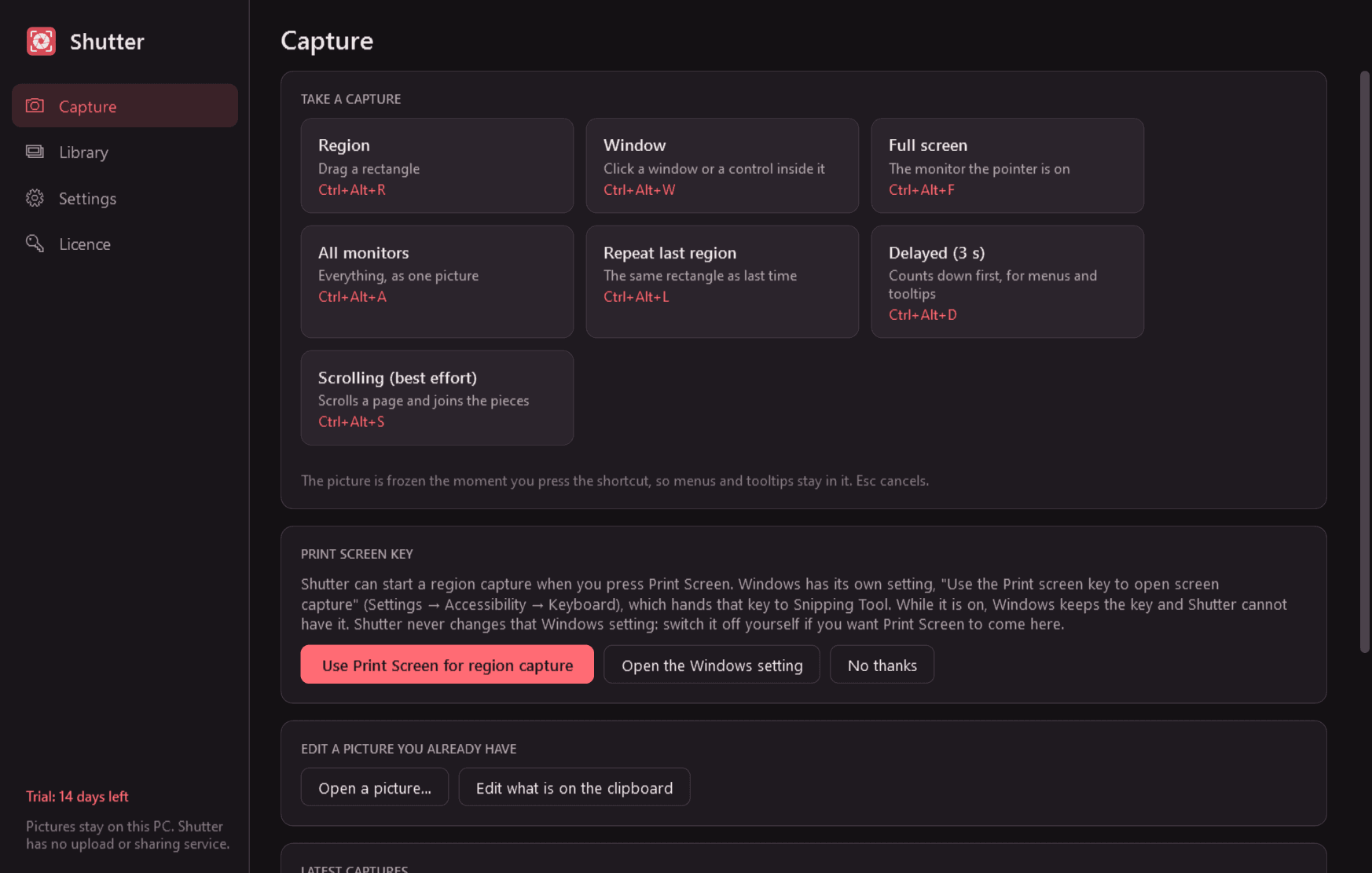
- Capture a region, a window (or a control inside it), the monitor the pointer is on, all monitors, the same region as last time, or after a 3, 5 or 10 second delay for menus and tooltips. Each has its own shortcut, and you can change them all.
- The screen is frozen while you choose. A magnifier shows the exact pixel under the pointer and its position, the size of the selection is shown as you drag, and you can adjust the rectangle by its handles or nudge it with the arrow keys before confirming.
- Pixel-exact on several monitors with different scaling, including monitors to the left of or above the main one.
- Window captures with or without the shadow, kept see-through, and optionally with the mouse pointer.
- Scrolling capture for long pages, as a best-effort feature: if the pieces cannot be joined cleanly, Shutter says so instead of saving a broken picture.
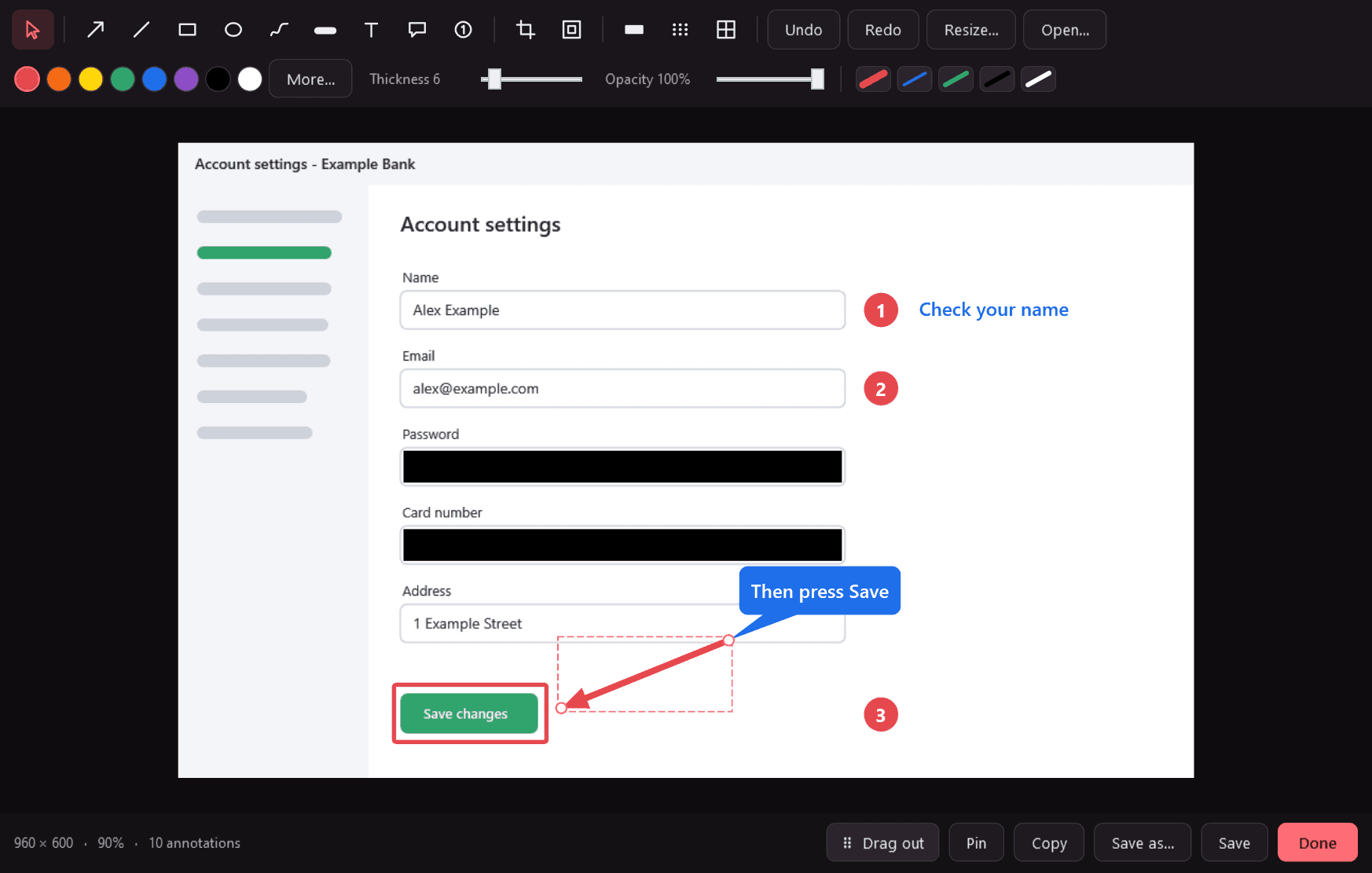
- Editor: arrow, line, rectangle, ellipse, pen, highlighter, text, speech-bubble callout, step numbers that count up by themselves, crop, resize, and a spotlight that dims everything outside an area.
- Hiding information: a solid redaction box (recommended), plus blur and pixelate. In the saved file the redacted pixels are gone, not covered by a layer.
- Every annotation stays a separate object you can move, resize, restyle or delete. Unlimited undo and redo. A keyboard shortcut for every tool.
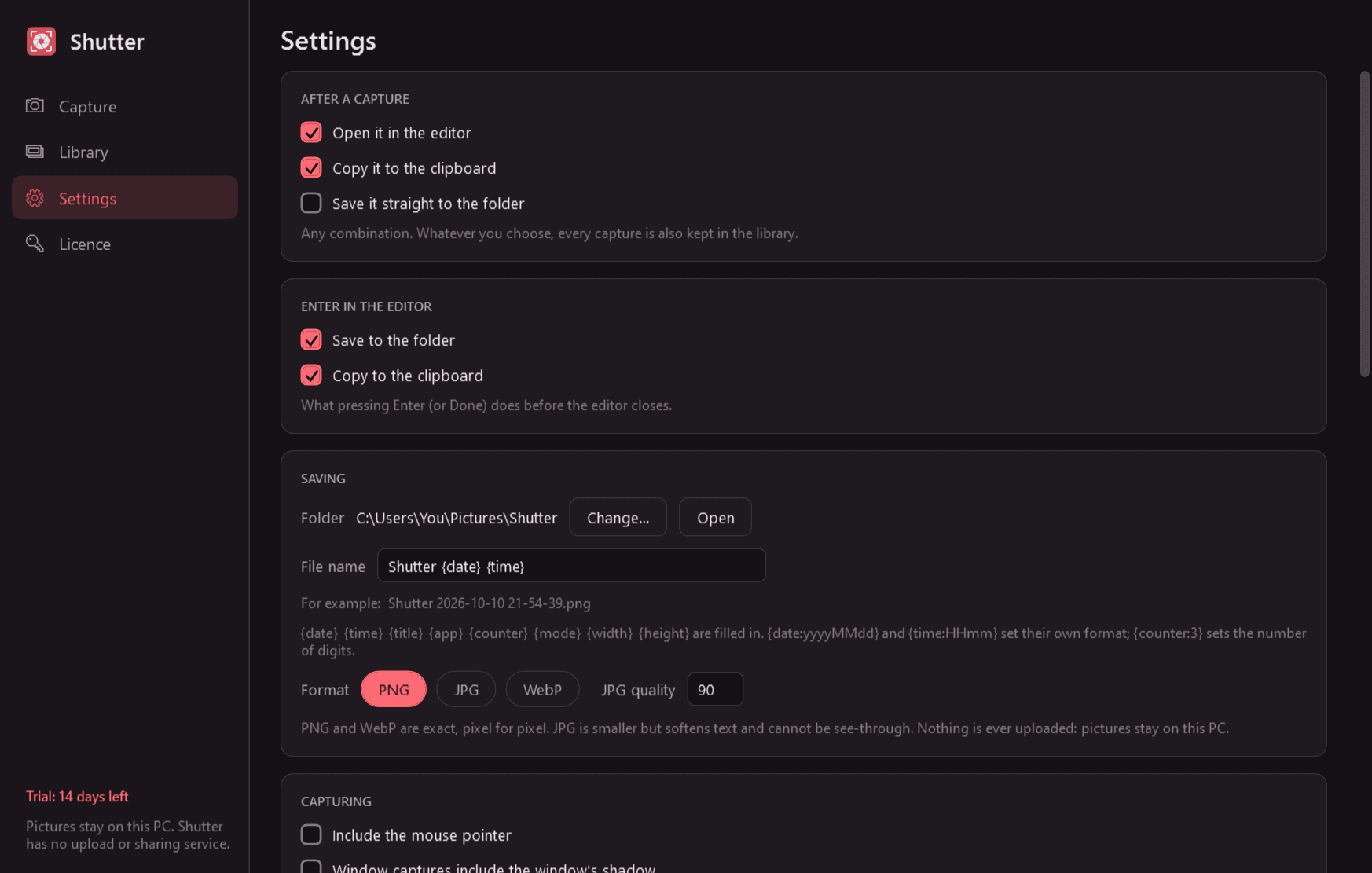
- Copy to the clipboard, save as PNG, JPG or WebP, or drag the picture straight into a chat, an email or a folder. Automatic saving with a file-name pattern you choose.
- Pin a capture to the screen: a small window that stays on top, which you can move, resize and make see-through.
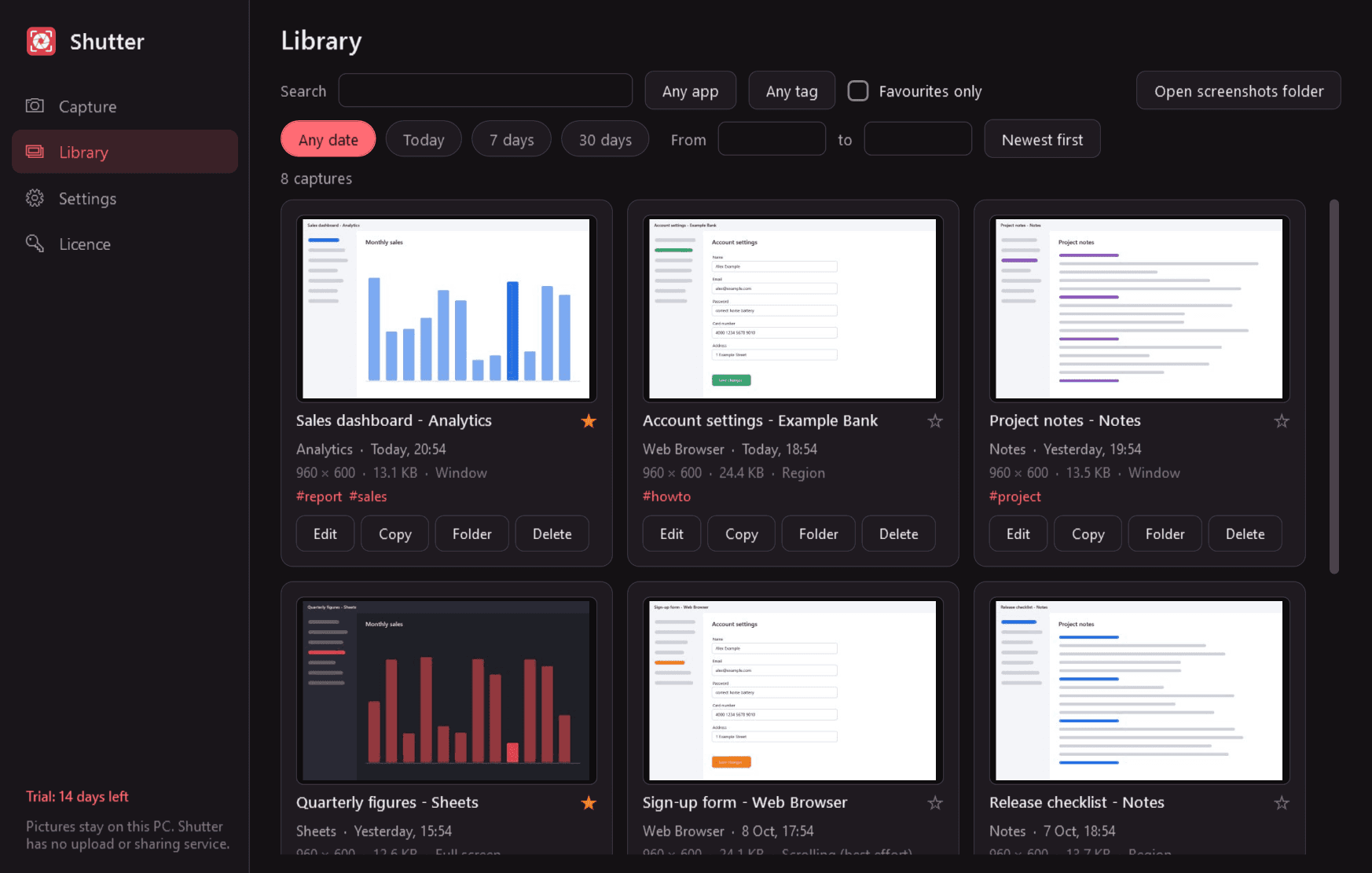
- Library: every capture with its thumbnail, date, size, the app and window it came from, and your own tags. Search, filter, sort, favourites, and open any capture again with its annotations still editable.
- Tray menu with every capture mode and your latest captures. Light and dark mode.
What it does not do
- No upload, no sharing links, no account. Pictures stay on your PC.
- No video or GIF recording, and no text recognition.
Good to know
- Shutter can use the Print Screen key. Windows has its own setting that gives that key to Snipping Tool; Shutter explains it and links to it, and never changes it for you.
- So that a capture can be edited again, the library keeps its untouched original on your PC, in Shutter's own folder and apart from the folder you save to. That original is the picture as captured, before any redaction; deleting the capture from the library removes it.
- Blur and pixelate can sometimes be reversed. For passwords and personal data use the solid box.
- Scrolling capture works on ordinary pages. Pages that animate, load more as you scroll or repeat themselves are refused.
- Controls inside a window can be picked in classic Windows programs; many modern apps and browsers draw their contents as one surface, and there the whole window is offered.
- It uses next to no processor time while it waits, and the overlay appears at once when you press a shortcut.
- The only network use is the licence check and the update check with this store.
- Free to try for 14 days with every feature. After that Shutter needs a licence to keep working; without one it opens only a screen that asks for a licence key, and gives its shortcuts back to Windows. Screenshots you have saved are ordinary picture files and stay yours; your library is kept and comes back when you enter a key.
One-time purchase for one PC. Includes every version released in the following 12 months; the version you have keeps working after that.
Screens
A closer look.
Next project · Desktop appsTrellis →
Need somethinglike this built?
A few lines is enough. You will hear back from a person within one business day.
Start a projector email [email to set] · [booking link to set]