Work / Desktop apps / Productivity

Trellis
Snap windows into zones, and bring back whole arrangements of apps with one shortcut.
What it does
Snap windows into zones, and bring back whole arrangements of apps with one shortcut.
Trellis divides each monitor into zones, snaps windows into them by dragging or by keyboard, and saves whole arrangements of apps as workspaces you can bring back with one shortcut.
What sets it apart from Windows' own snapping and the free zone tools is the workspaces: Trellis remembers which app goes where, reopens the apps that are closed, and puts everything back after a monitor is unplugged or the PC wakes.
It sits in the notification area and starts when you sign in. There is no Windows service, and it needs no administrator rights to install or to run.
What it does
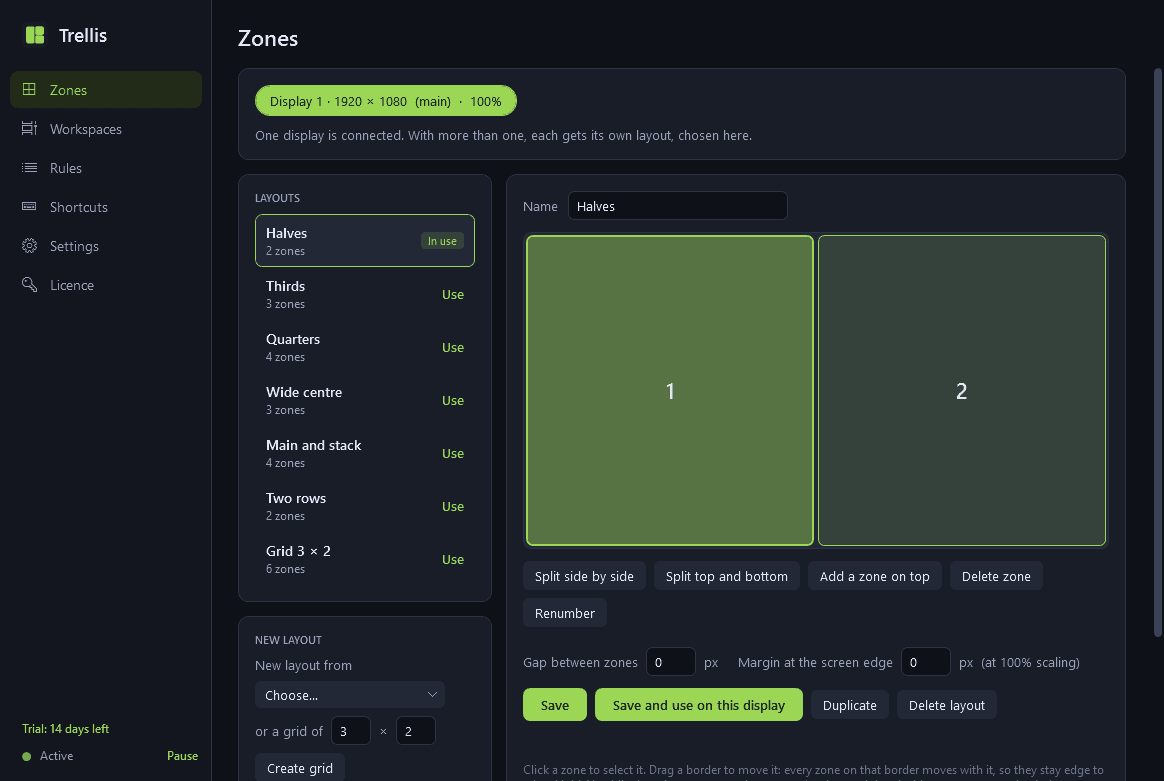
- Zones: a visual editor for each monitor. Start from a template (halves, thirds, quarters, a wide centre with two sides, a main area with a stack, any grid) or split and drag the borders yourself. Zones may overlap. Set the gap between zones and the margin at the screen edge.
- Several zone layouts, switched by shortcut or from the notification area.
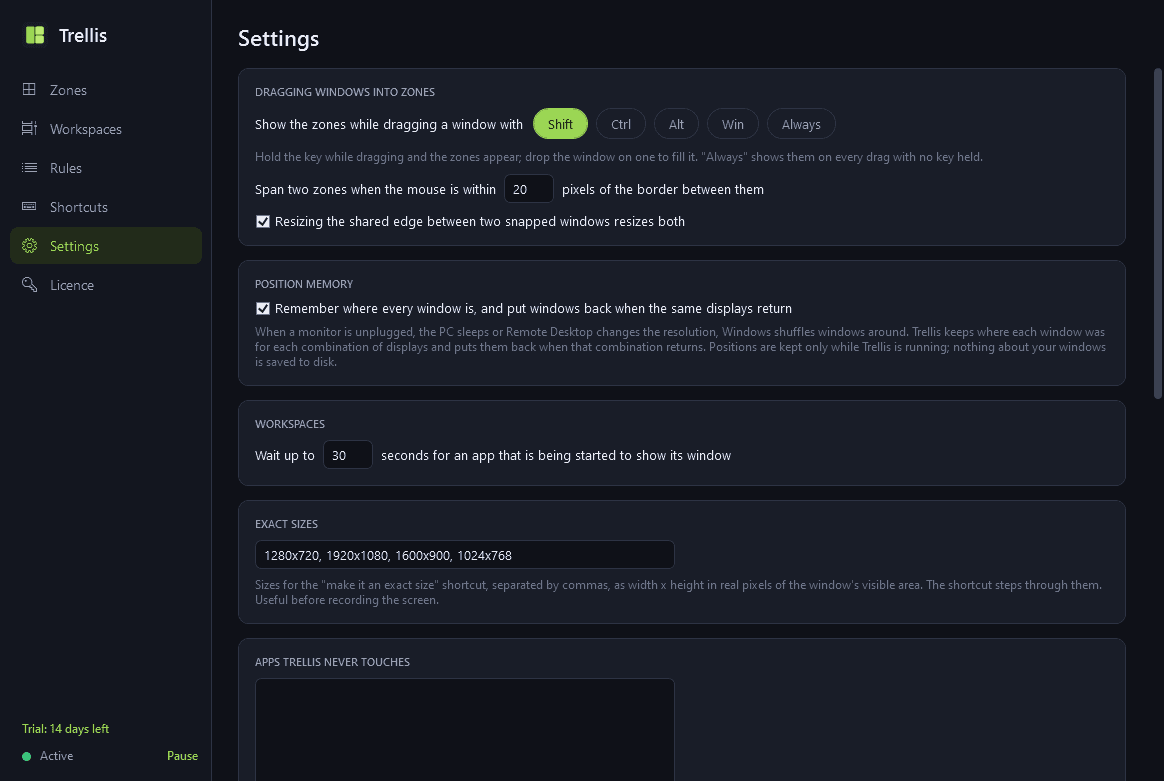
- Snap with the mouse: hold Shift (or another key, or none) while dragging a window and the zones appear; drop it in one to fill it, or on the border between two to span both.
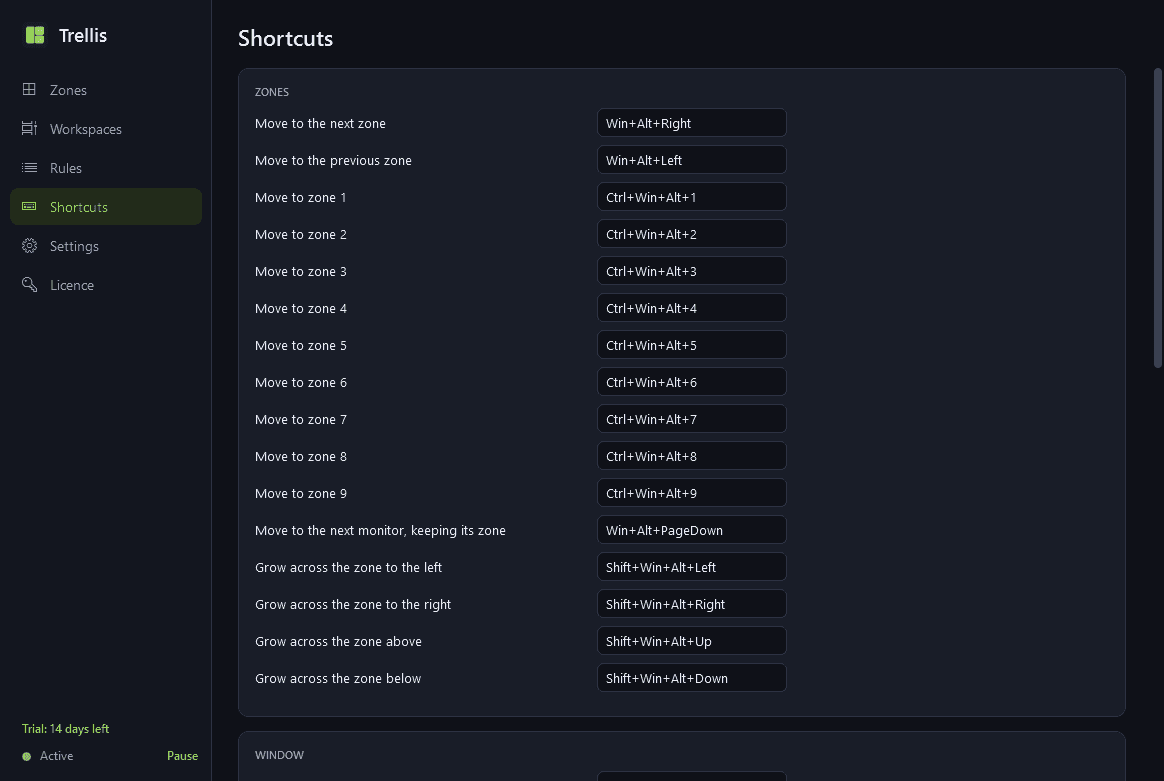
- Snap with the keyboard: next and previous zone, a zone by number, the next monitor, and grow across the neighbouring zone.
- Exact placement: windows are placed by their visible edges, so they meet with nothing between them at any scaling, including monitors with different scaling. Windows that cannot be resized, or have a minimum size, are placed as well as possible and never left partly off screen.
- Resize the edge two snapped windows share and both follow.
- More shortcuts: centre a window, give it an exact size (1280 × 720 and your own, handy before recording), maximise it within its zone, keep it always on top, and put it back where it was.
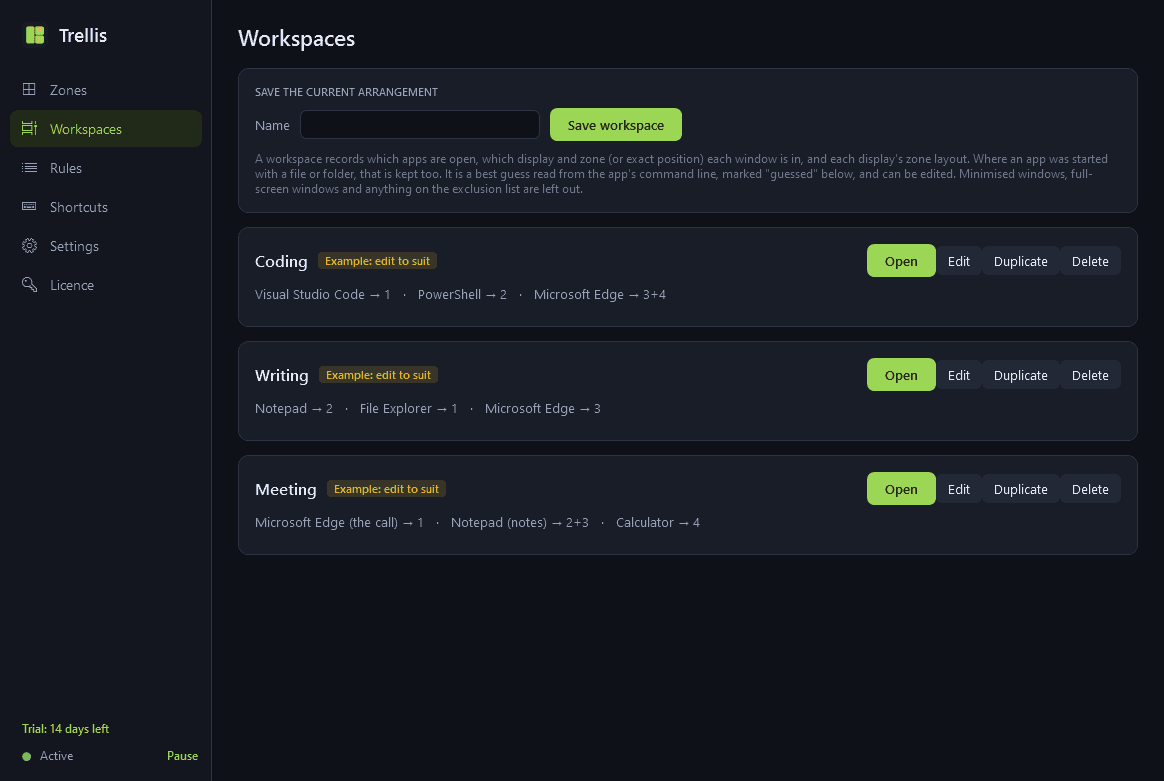
- Workspaces: save the current arrangement, with which apps are open, where each window is and, where it can be read, the file or folder each had open. Open one by shortcut, from the notification area or from a small picker: open windows move into place, apps that are not running are started and placed when their window appears. Optionally minimise everything else. Edit a workspace afterwards; Coding, Writing and Meeting are included as examples.
- App rules: always open this app in this zone on this monitor, matched by program and optionally by window title.
- Display profiles: Trellis recognises each combination of monitors (laptop alone, docked, projector) and applies the layouts you use for it.
- Position memory: when a monitor is disconnected, the PC sleeps or Remote Desktop changes the resolution, Windows shuffles windows around. Trellis puts them back when the previous display set-up returns. This can be switched off.
- Every shortcut can be changed, and Trellis tells you when a combination is already taken. A list of apps it must never touch. Light and dark mode.
Good to know
- Trellis leaves alone full-screen games and videos, the taskbar, system dialogs, pop-ups and tool windows.
- Windows does not let a normal program move the windows of an app that runs as administrator. Trellis says so when it happens, and has an option to run itself as administrator for people who need that.
- Win + arrow keys remain Windows' own snapping unless you choose to hand them to Trellis.
- The file or folder saved with a workspace is a best guess read from the app's command line; it is marked as such and can be edited. Not every app can be reopened on the same document.
- It learns about window movement from Windows' own notifications rather than by polling, so it uses almost no processor time while idle and adds no lag to dragging.
- Everything stays on your PC. The only network use is the licence check and the update check with this store.
- Free to try for 14 days with every feature. After that Trellis needs a licence to keep working; without one it removes its shortcuts and stops, leaving your windows where they are, and opens only a screen that asks for a licence key. Your layouts and workspaces are kept, can still be exported, and work again once a licence is entered.
One-time purchase for one PC. Includes every version released in the following 12 months; the version you have keeps working after that.
Screens
A closer look.
Need somethinglike this built?
A few lines is enough. You will hear back from a person within one business day.